 Moorfox
Add a device to Moorfox
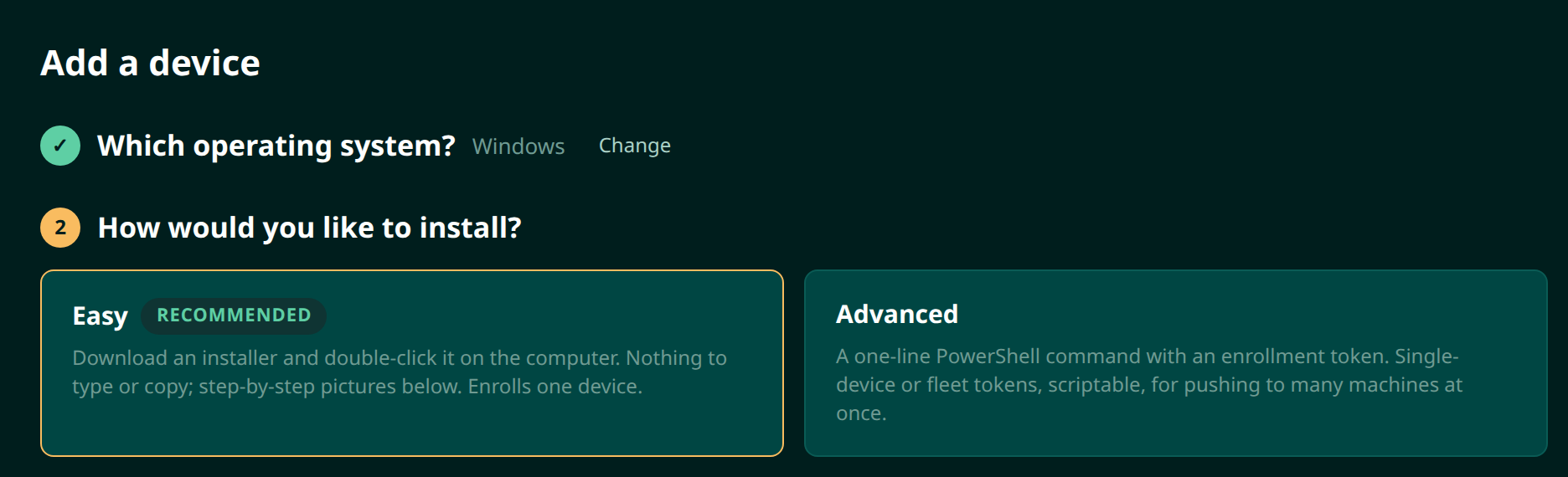
Add device is a short wizard: pick the operating system, then pick how you want to install. Easy downloads an installer with an enrollment code already inside it, so there is nothing to type on the machine. Advanced gives you the one-line PowerShell or shell command, with a choice of single-device or fleet token.
Either way the machine appears in your device list within a few seconds. You need the Add devices permission in the organisation, which admins always have and which can be granted to a technician, and administrator or root on the machine itself.
Open the Add device screen
The Add device button sits in the top right of the dashboard, on every page. It is only shown to people who hold the Add devices permission, because enrolling a machine is what makes it yours. Admins always hold it; a technician gets it when an admin ticks it for them.

Step 1: which operating system?
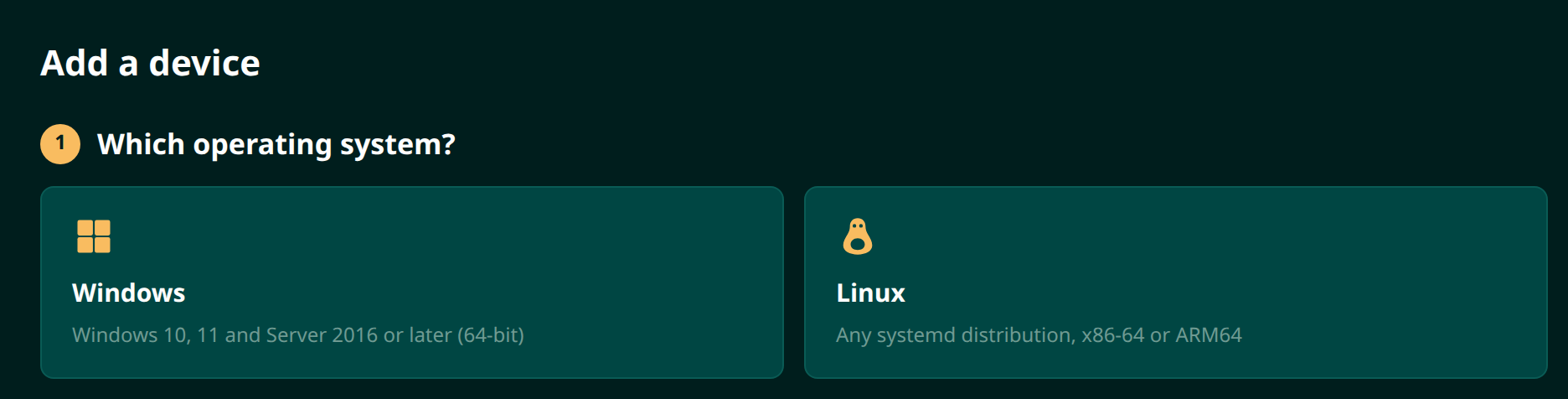
The wizard asks what you are enrolling before it offers you anything, because the installer and the command differ per platform and there is no reason to show you both.
| Choice | Covers |
|---|---|
| Windows | Windows 10, 11 and Server 2016 or later, 64-bit. |
| Linux | Any systemd distribution, x86-64 or ARM64. |
Step 2: Easy or Advanced?
The second step is about how much you want to type on the far machine, not about how much you get. Both paths install the same agent and end with the same device in your list.
| Easy | Advanced | |
|---|---|---|
| What you send | An installer file to run | A one-line command to paste |
| On the machine | Double-click on Windows, run it on Linux | An elevated PowerShell, or a terminal with sudo |
| Machines per go | One | One, or a whole estate with a fleet token |
| Reach for it when | A person is at the computer, or you are sending a file to somebody non-technical | You are scripting a rollout, pushing through another RMM, or on a headless server |
Easy: download and run the installer
The button downloads a MoorfoxSetup file with a fresh
single-use enrollment code already inside it, valid for an hour. Nothing is
minted until you click: opening the page costs nothing, and every click
gives you a new installer with its own code, so it can only ever add one
computer to your organisation.
Send the file however you like, but do not rename it. The enrollment code travels in the filename on signed builds, so a renamed installer arrives with nothing to enrol against.
The installer is signed
Every Moorfox binary we publish is code-signed through Microsoft Azure Artifact Signing on a publicly trusted certificate, so Windows can verify who published it before it runs. The signature is timestamped, which means it stays valid after the certificate itself rotates.
This is worth knowing precisely, because it is a check your customer can make and a thing a scammer cannot fake:
| Prompt | What signing changes |
|---|---|
| User Account Control | The blue dialog naming DevSmooth Software Inc. as a verified publisher, rather than the yellow Unknown publisher one. This is the one to point at on the phone. |
| SmartScreen | May still appear. Signing alone does not remove it — Microsoft clears it on reputation, which builds as a given release is downloaded and behaves. It is expected on a new release and fades as that build spreads. |
Signing is not the only check. The Advanced one-liner verifies the agent's SHA-256 checksum before it runs anything, and the installed agent checks the checksum of every update it downloads before swapping itself, so a later update is verified the same way the first install was.
Confirming your organisation
Before anything is enrolled, the installer shows one more window: it names the organisation that is about to be able to manage the computer and lists what that means — seeing its software and settings, running remote sessions, and installing software. The person at the keyboard reads it and presses Install. The button is held for a few seconds first, so it cannot be clicked through by reflex, and Cancel is the default, so a stray keypress — or an installer run by something automated — never enrols the machine.
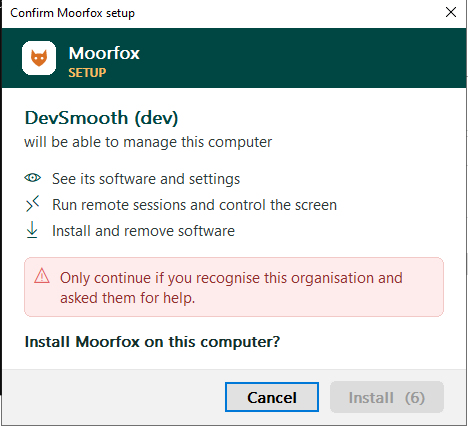
This is what stops a renamed or re-used old installer from quietly taking over a machine: an installer too old to show this confirmation is turned away, and the window names your organisation, so anyone being talked into running somebody else's installer sees whose it really is.
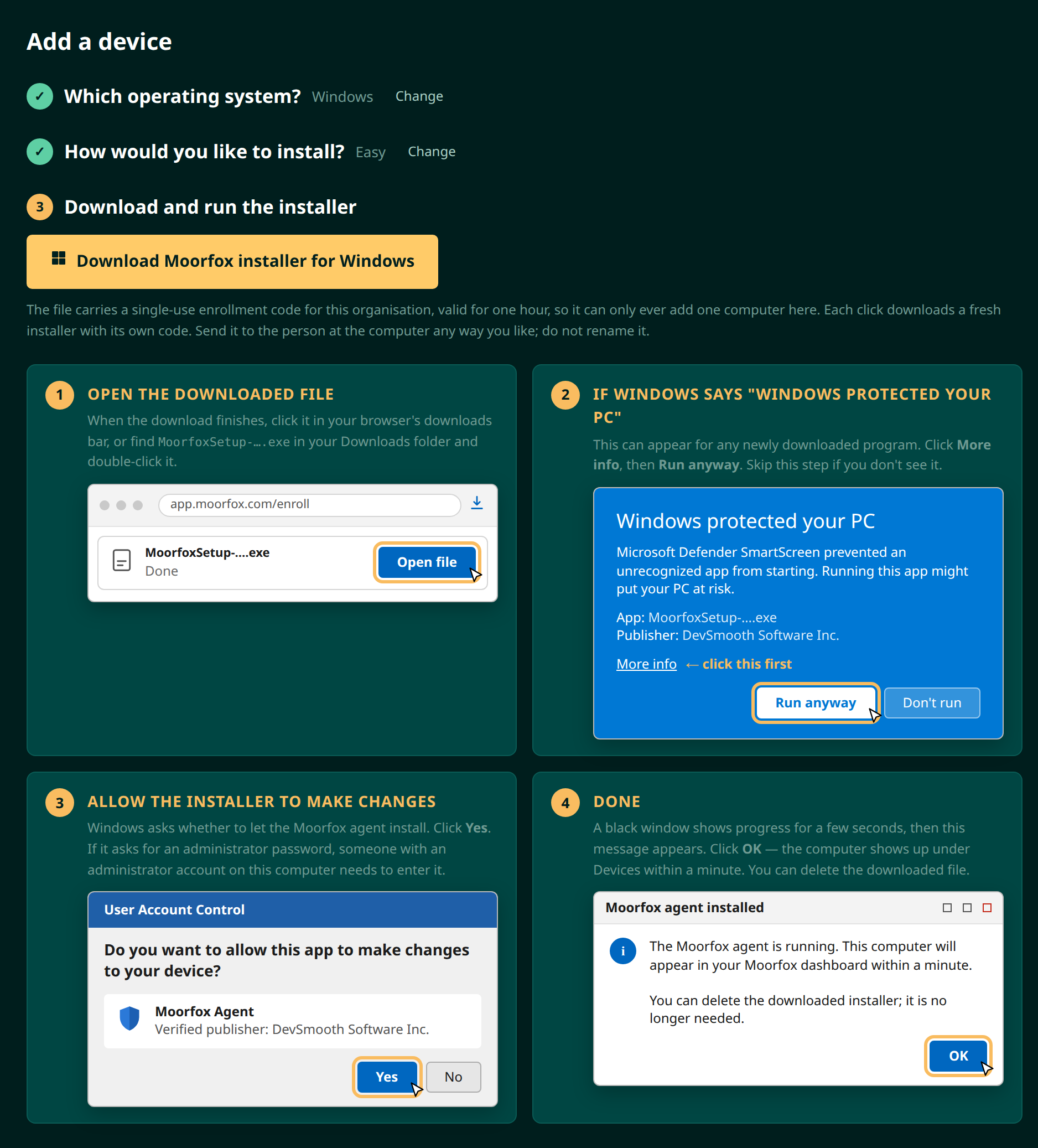
On Windows the person at the machine opens the downloaded file and answers a few prompts. The wizard draws them all, so you can talk somebody through them without seeing their screen:
| They see | They click |
|---|---|
| Windows protected your PC (SmartScreen) | More info, then Run anyway. It appears for any newly downloaded program and may not appear at all. |
| Do you want to allow this app to make changes? (UAC) | Yes. On a locked-down machine it asks for an administrator password first. |
| Confirm Moorfox setup, naming your organisation | They read it, wait out the short countdown, then Install. Cancel stops without enrolling, and is the default. |
| A black window, then Moorfox agent installed | OK. The machine is enrolled and the agent is already running. |
On Linux the file is run from a terminal instead, which the wizard also spells out. One caveat worth knowing before you send it: the Easy installer expects the X11 client libraries to be present. On a headless server that has never had a desktop, use Advanced instead — its script installs those libraries as part of the run.
Advanced: the one-line command
The Advanced step mints a token as soon as you open it and builds the command around it. Copy the whole line; it carries both your organisation and the address of your Moorfox server.
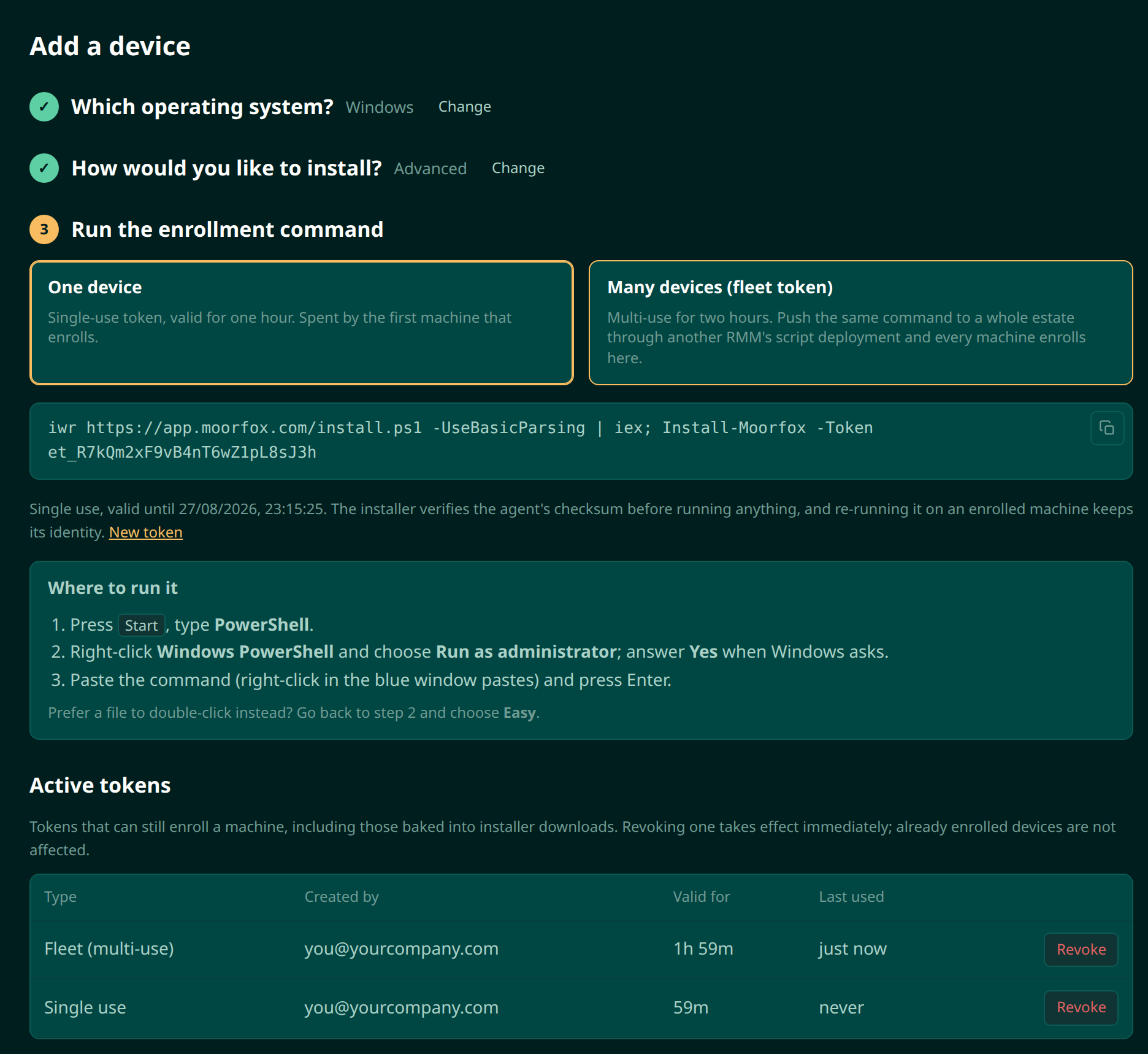
Choose a token type
Two kinds, and the difference is only how many machines the command works on:
| Token | Valid for | Machines | Use it when |
|---|---|---|---|
| One device | 15 minutes (1 hour with mass deploy) | One | You are enrolling one machine, which is nearly always. |
| Many devices (fleet) | 2 hours to 30 days | Unlimited | You are onboarding many machines at once, typically pushing the command through the RMM you are migrating away from. Needs mass deploy. |
Single use is the default, and the safer habit: it stops working the moment it has enrolled its machine, so a command left in a chat log or a ticket is not an open door into your organisation. Choose Many devices deliberately, and revoke it when the rollout is done rather than waiting out its two hours.
Where to run it
On Windows the command installs without anything appearing on the machine, so it needs mass deploy; until then, use Easy. With it, run the command in an elevated PowerShell: press Start, type PowerShell, right-click Windows PowerShell and choose Run as administrator. Paste with a right-click and press Enter.
iwr https://app.moorfox.com/install.ps1 -UseBasicParsing | iex; Install-Moorfox -Token <your-token>
On Linux, in a terminal on the machine or over SSH. It needs
sudo because the agent installs as a system service:
curl -fsSL https://app.moorfox.com/install.sh | sudo sh -s -- --token <your-token>
Copy the command from the dashboard rather than from this page: the one above is missing your token. The installer verifies the agent's checksum before it runs anything, then installs the agent as a service so it starts with the machine and reconnects on its own.
The agent connects outward to Moorfox over HTTPS. There are no inbound ports to open and no VPN to build, which is what makes machines behind home routers and client firewalls reachable without touching anyone's network.
Check it arrived
Go back to Devices. The new machine appears within a few seconds, carrying a green online pill, its hostname, the signed-in user and its OS. The list refreshes itself every five seconds, so there is nothing to reload.
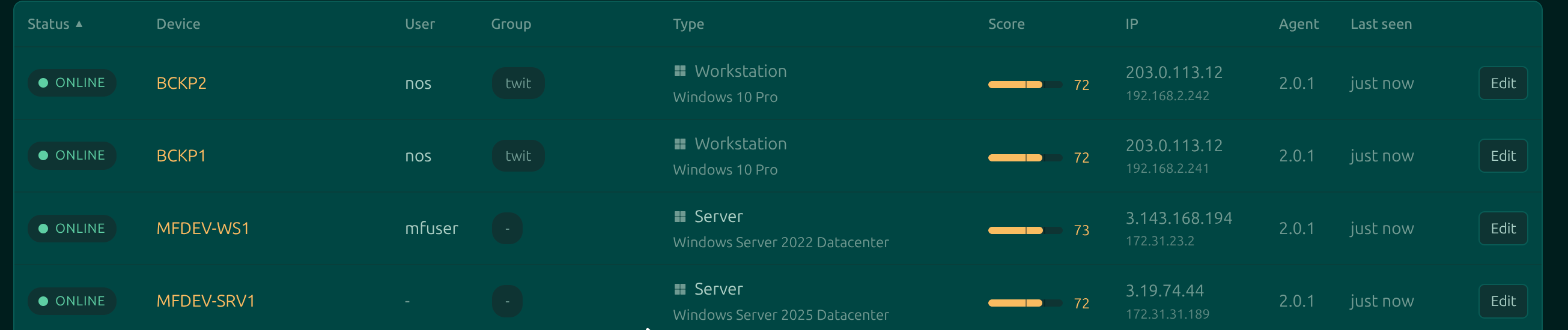
The security score and the software, users and network inventory arrive a moment later, once the agent has finished its first collection. A blank score on a device enrolled seconds ago is normal.
Manage and revoke tokens
Every token that can still enrol a machine is listed under Active tokens, at the bottom of the Advanced step, with who created it, how long it has left and when it was last used. Codes baked into Easy installer downloads are listed there too, so a file you sent and then thought better of can be killed the same way.
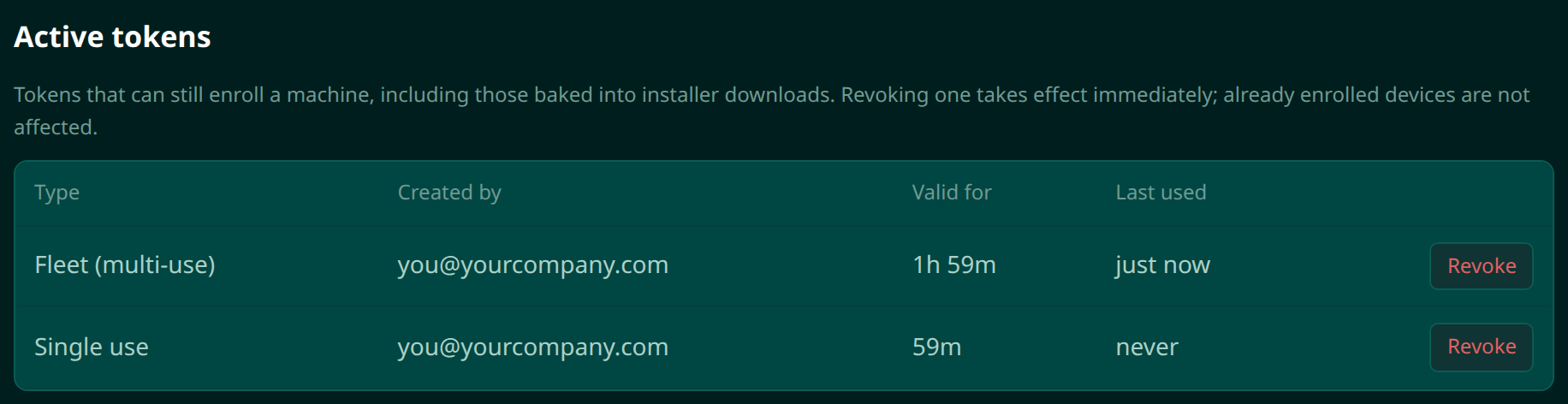
Revoke takes effect immediately. Devices that have already enrolled with that token are unaffected: enrolment is a one-time handshake, and the machine's identity does not depend on the token afterwards.
New accounts: verification
A newly opened organisation cannot take screenshots or use the User Curtain in a remote session until it is verified. Open Settings > Verification and either add a card, which unlocks at once, or send your business details (company and registered name, registration number and address), which our team reviews, usually within one working day. The card is never charged and does not put you on a paid plan; it helps if the name on it matches your company or your own name.
Installing at scale: mass deploy
Installing on many computers at once is switched on per organisation by the Moorfox team, so Moorfox cannot be signed up for and pushed silently onto strangers' computers. Until it is on, whether or not you are verified:
| Feature | Without mass deploy |
|---|---|
| Install codes | One computer per code, and each code expires after 15 minutes. No fleet tokens or several-computers installers. |
| PowerShell install on Windows | Not available; use the Easy installer. The Linux shell command works as normal. |
| Identity widget | Stays on, so the person at the machine always sees who manages it. |
Adding computers one installer at a time has no limit. Mass deploy is for established organisations that have verified their account (in the dashboard, under Settings > Verification), so verify yours first — an unverified account is not switched on, whatever it manages. Once it is verified and managing more than ten computers, we look at it and switch mass deploy on; you can ask at support@moorfox.com, saying how many machines you are bringing over and from where.
Reinstalling or removing the agent
To repair an agent on a machine you already have, use Actions then Reinstall on the device's own page rather than enrolling it again. That replaces the binary while keeping the device's identity, so its history, inventory and score stay on the same page. Running a fresh Easy installer on the machine does the same: an enrolled machine keeps its identity and the code in the file goes unused.
To remove the agent entirely, run the uninstall form of the installer on the machine:
iwr https://app.moorfox.com/install.ps1 -UseBasicParsing | iex; Uninstall-Moorfox
curl -fsSL https://app.moorfox.com/install.sh | sudo sh -s -- --uninstall
Troubleshooting
| Symptom | Likely cause |
|---|---|
| The installer says there is nothing to enrol against | The file was renamed after downloading, which strips the enrollment code. Download a fresh one and send it as-is. |
| The command fails with an authorisation error | The token has expired, been revoked, or a single-use token has already enrolled a machine. Create a new one. |
| The command fails on Windows with an access error | The PowerShell session is not elevated. Close it and start one with Run as administrator. |
| Windows blocks the installer and there is no Run anyway | SmartScreen is enforced by policy on that machine. Use Advanced instead. |
| The Easy installer fails on a Linux server with a missing library | A headless machine without the X11 client libraries. Use Advanced, whose script installs them. |
| The device never appears | The machine cannot reach the Moorfox endpoint over HTTPS. Check outbound access and any TLS-inspecting proxy on the network. |
| The device appears then goes offline | The agent installed but the service is not starting. Open the device page and read the Logs tab, which is served from stored logs and works while the device is offline. |
Next: connect to the machine and use the RMM tools, or sort it into a group and tag it.
Moorfox is remote monitoring and management without the enterprise tax.
One agent, one dashboard, remote desktop and a real terminal on every machine you look after.