 Moorfox
Connect to a device and use the RMM tools
Moorfox gives you two ways onto a machine. Connect opens a remote desktop session in a new tab, which is what you want when a person is at the machine or the fix is visual. The Manage tab gives you a terminal, a file explorer, a process list and service control, all without disturbing whoever is using the screen.
Both need the device to be online. Everything else on the device page, including the stored logs and the full inventory, keeps working while it is offline.
Open the device
Click the machine in the device list, or pick it out of Recent in the sidebar, which remembers what you have been working on. The page opens on Overview, and the action buttons live in the header.

Connect is greyed out when the device is offline, and also when the agent reports no display it can capture, for example a Linux server with no graphical session. Hover it and the tooltip says which of the two it is.
Remote desktop
Connect opens the session in its own browser tab. That is deliberate: a session is long-lived and wants the whole window, and you keep the dashboard usable beside it.
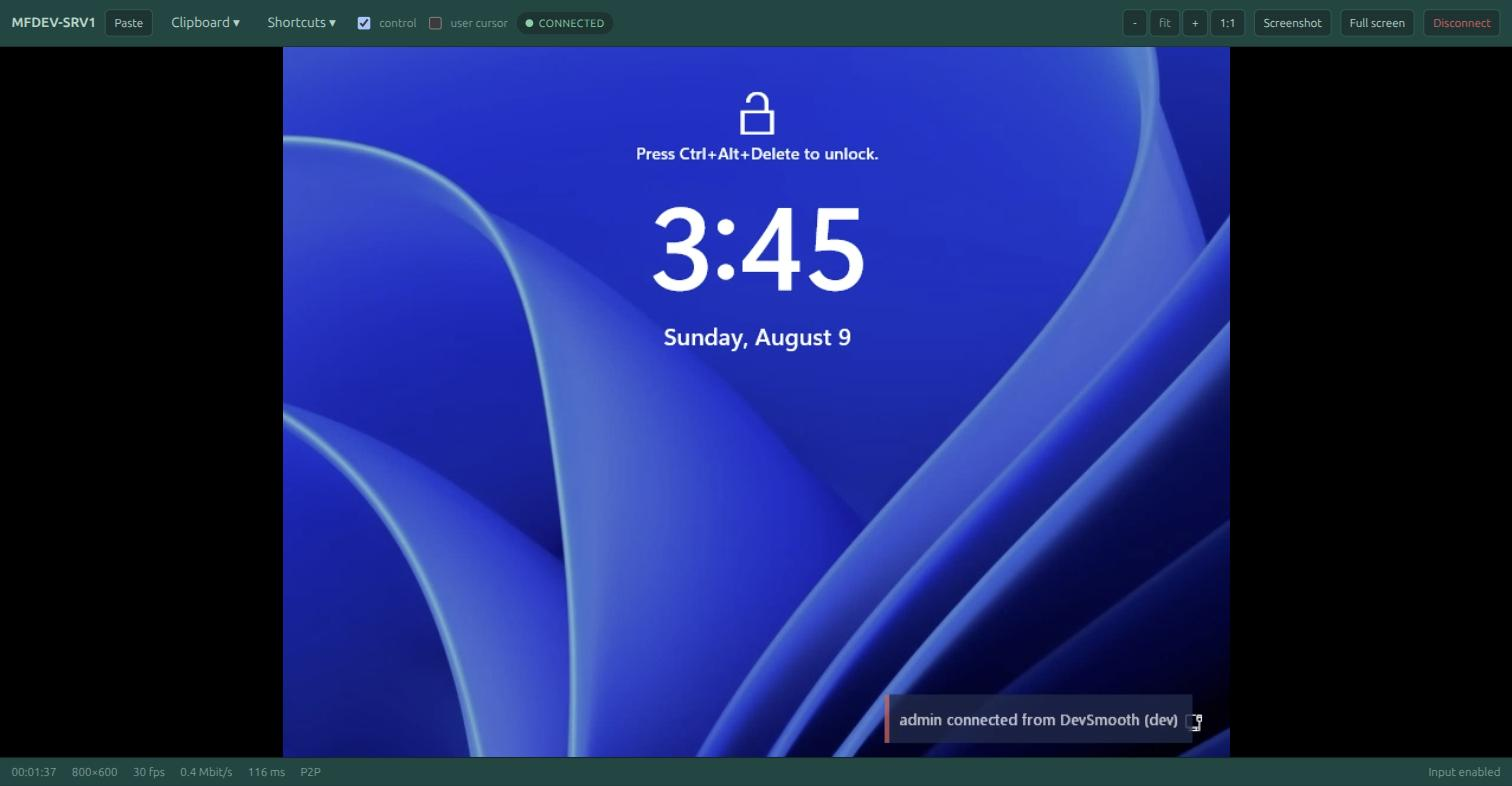
The machine says so when you arrive. The notification in the corner above is raised on the remote desktop naming the operator and the organisation connecting, so a session is never invisible to whoever is sat at the machine.
The toolbar

| Control | What it does |
|---|---|
| Screens | On a multi-monitor machine, switches which screen you are watching, or opens the others in their own tabs so you can watch several at once. Shown only when the machine has more than one. |
| Paste | Pastes your clipboard at the remote cursor. It is on the bar rather than in a menu because pasting a password or a command is the thing you reach for most. |
| Clipboard | Send your clipboard to the machine, copy the machine's clipboard back to yours, or type a string of text remotely without involving either clipboard. |
| Shortcuts | Key combinations the browser will not let you press directly: Ctrl+Alt+Delete, Ctrl+Shift+Esc, Alt+Tab, Alt+F4, the Windows key on its own, Win+L, Win+R and PrintScreen. |
| Commands | Runs a script from your organisation's command library on this machine. Shown when the library has commands that apply to its platform. |
| control | Your mouse and keyboard drive the machine. Clear it to watch without touching, which is the right setting when you are shadowing a user rather than working. |
| user cursor | Draws the remote user's own pointer, so you can see what they are doing while you watch. |
| Connection pill | Green when the session is live. It also carries the reason when a session ends. |
| Zoom | Minus, plus, and the label itself to return to fit. 1:1 gives one remote pixel per screen pixel, which is how you read small text. Ctrl and scroll on the screen zooms too. |
| Screenshot | Captures the screen and opens it for you to crop to the part that matters and name. Saved, it becomes a line in the device's work log on the Notes tab; discarded, nothing is kept. Useful for a ticket or a before-and-after. |
| Full screen | Hands the whole display to the session. |
| Disconnect | Ends the session. The machine is unaffected. |
Sending Ctrl+Alt+Delete looks like a frozen session, and is not. Windows draws its security screen on a separate desktop that no capture can see, so the picture stops updating until the person at the machine, or you, picks something from it.
The video takes a direct peer-to-peer path to the machine where the network allows it, and falls back to a relay where it does not. Which one you got is shown in the session's connection detail, and matters only when you are chasing a slow session.
Multiple monitors
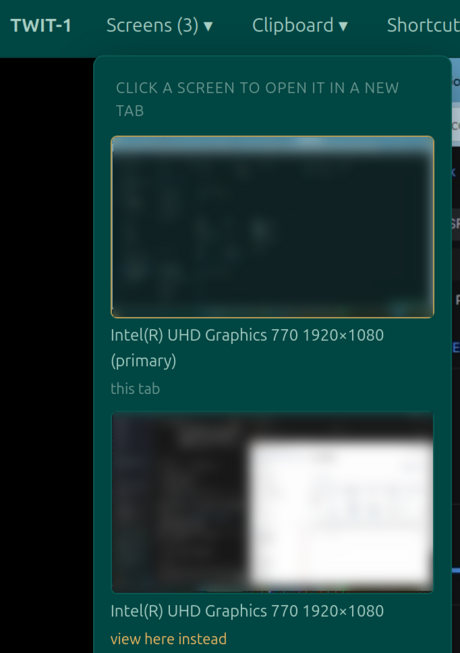
On a machine with more than one display, the Screens menu lists every monitor with a live thumbnail, named by its graphics adapter and resolution. Click one to open it in its own browser tab, or view here instead to switch the current tab to it. Open all other screens in tabs brings up the whole desk at once: one tab per monitor, each a full session view, so you can watch a dual-screen problem the way the user sees it. Refresh previews redraws the thumbnails when the desk has moved on.
The Manage tab
Back on the device page, Manage is the half of remote support that does not involve the screen. Four panes share one connection to the agent, so switching between them does not reconnect.
Terminal
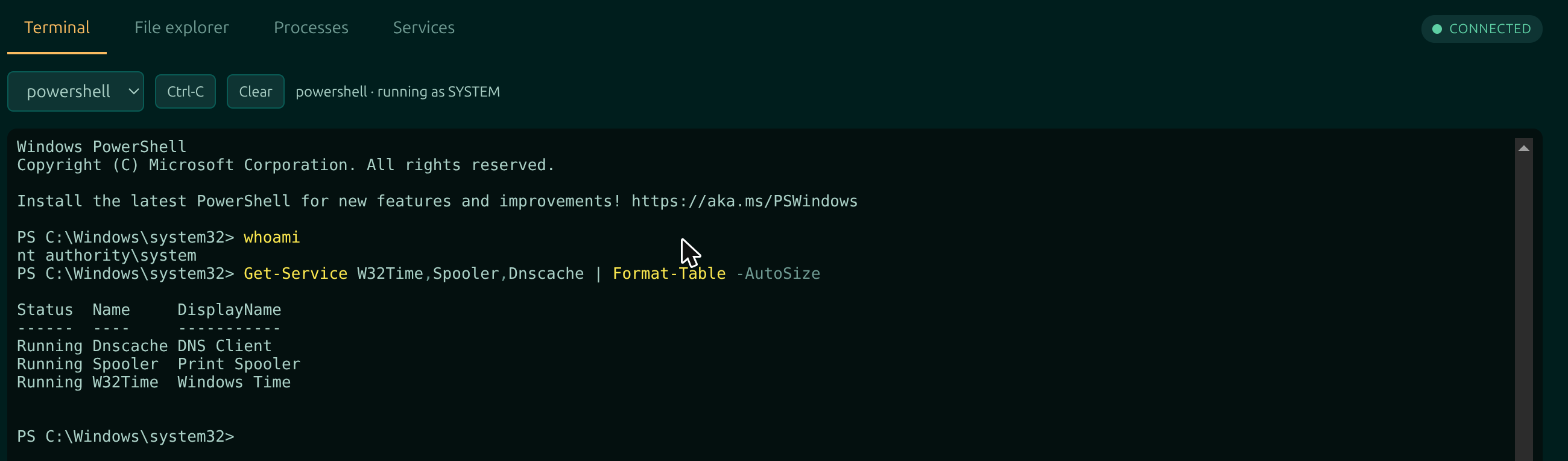
A real shell on the machine. Pick the shell from the selector on the left: PowerShell or cmd on Windows, bash or sh on Linux. Ctrl-C interrupts a running command and Clear clears the scrollback. Once your organisation has saved commands, a Run a saved command picker joins them, which is where a script you use often should live rather than in your notes. The status line names the shell and the account it is running as.
This shell runs with the agent's privileges: SYSTEM on Windows, root on Linux. There is no confirmation step. Everything you type executes on the remote machine immediately.
File explorer
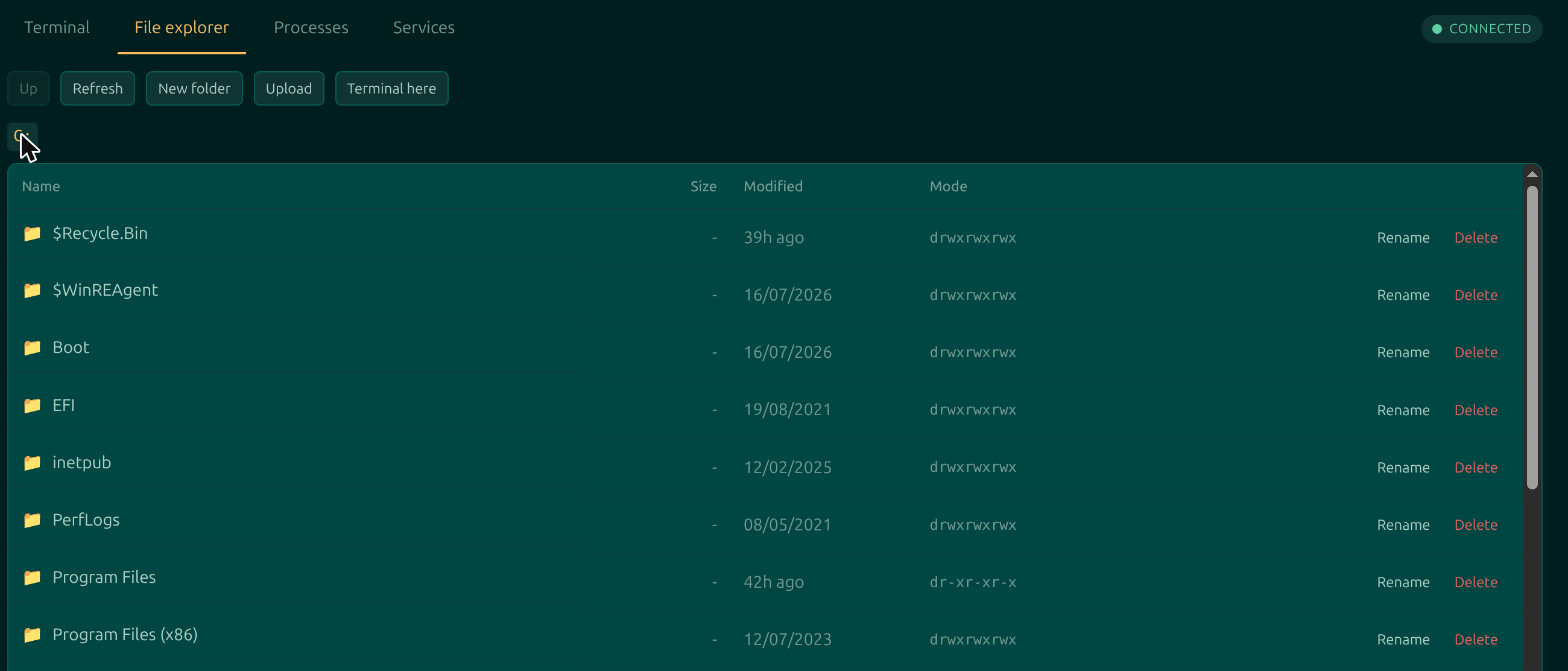
Browse the machine's filesystem, upload files to it and download files from it. On a machine with more than one volume a Go to selector appears at the left of the toolbar, listing the home directory and each volume with its free space; a single-volume machine like the one above does not need it and does not get it. New folder, rename and delete work in place, and Terminal here opens the terminal pane already sat in the directory you are looking at.
Processes
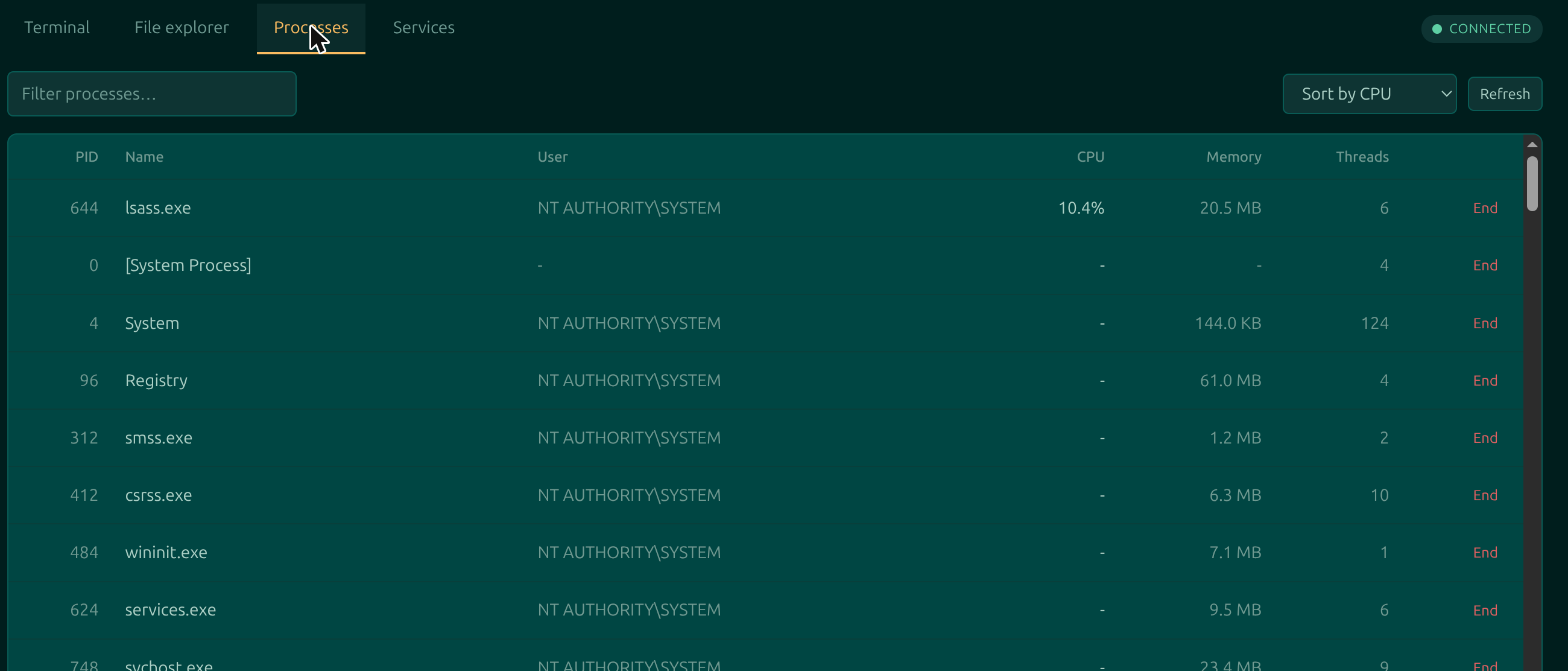
What is running, sorted by CPU, memory or name, with a filter box for when you know what you are looking for. Ending a process offers two strengths: ask it to stop first, which lets an application save and close, and a forced kill when it will not.
Services
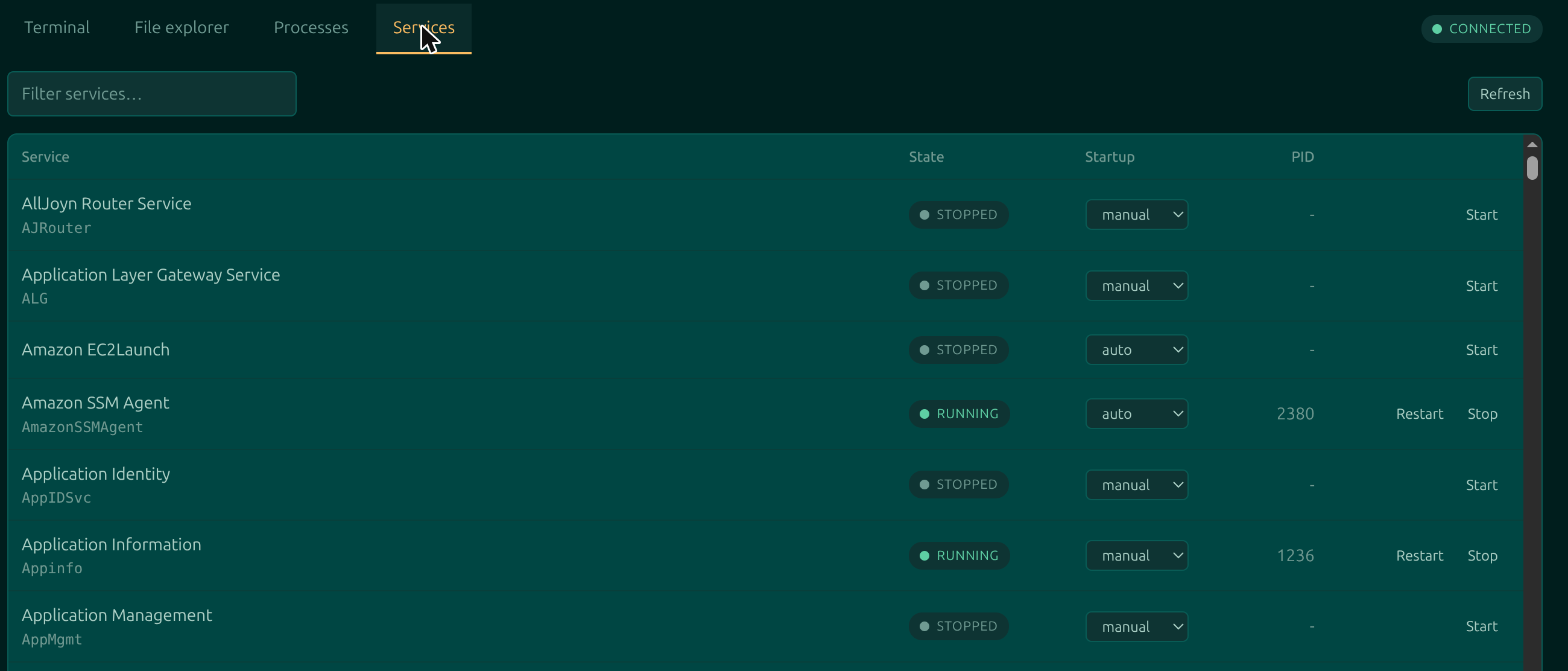
Services with their current state and startup type, and start, stop and restart in place. This is the fastest route through the common Windows fix of a service that has quietly stopped.
When the device is offline
Manage tells you plainly that it needs a live connection, and the other tabs carry on. Logs in particular is served from stored logs over the ordinary API rather than the live channel, precisely because an agent you cannot reach is when its log matters most.
Next: what every pill on the device page means.
Moorfox is remote monitoring and management without the enterprise tax.
One agent, one dashboard, remote desktop and a real terminal on every machine you look after.