 Moorfox
Tag hosts, create groups and organise a fleet
Moorfox organises machines two ways, and they are not competing. A device sits in exactly one group, which is how you divide a fleet along the line that owns it: by customer, by site, by role. A device carries any number of tags, which cut across groups to mark what a machine is: needs-reboot, finance, VIP, pilot.
The rule of thumb: if a machine can only be one of them, it is a group. If it can be several at once, they are tags.
Create a group
Groups live under Manage then Groups in the sidebar.
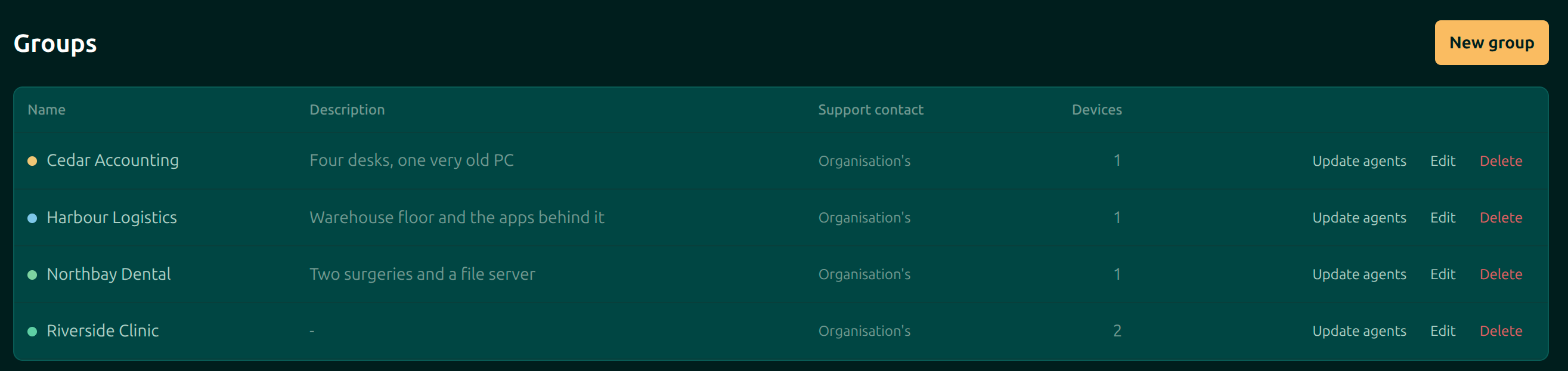
New group opens the editor.
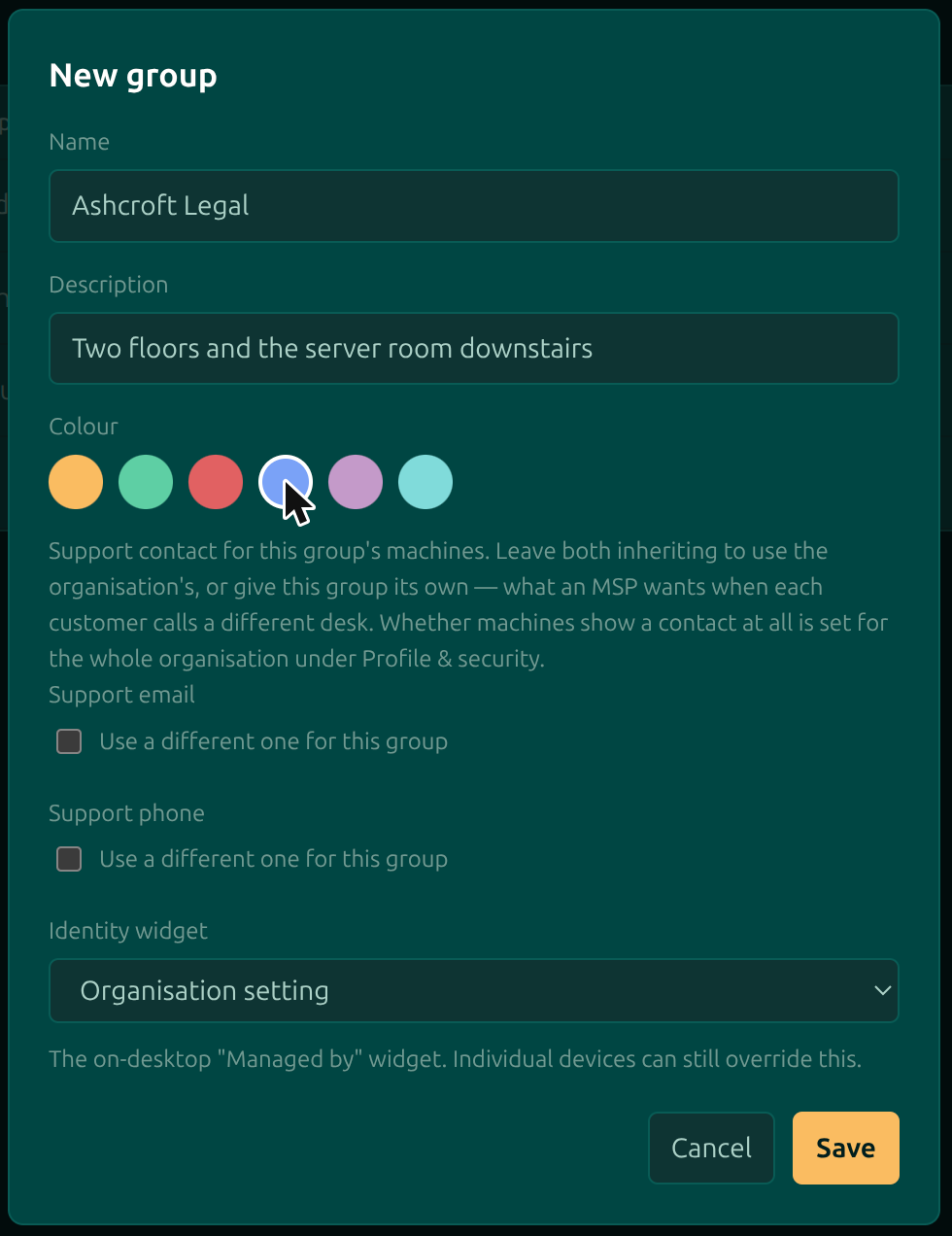
| Field | What it is for |
|---|---|
| Name | What you will see in the sidebar, the filter badges and every device row. |
| Description | Free text on the Groups page. Useful when a name like a customer's initials is not self-explanatory a year later. |
| Colour | The dot beside the group everywhere it appears. Worth setting: it is how you tell customers apart at a glance in a long list. |
| Support email and phone | Override the organisation's support contact for this group's machines. This is the MSP case, where each customer rings a different desk. Leave both inheriting to use the organisation's. |
| Identity widget | Whether the on-desktop “Managed by” widget shows on this group's machines. Inherits the organisation setting unless you say otherwise, and an individual device can still override it. |
Put devices in a group
The fastest way is straight from the device list. The Group column on every row is a picker, not just a label: click it and choose.
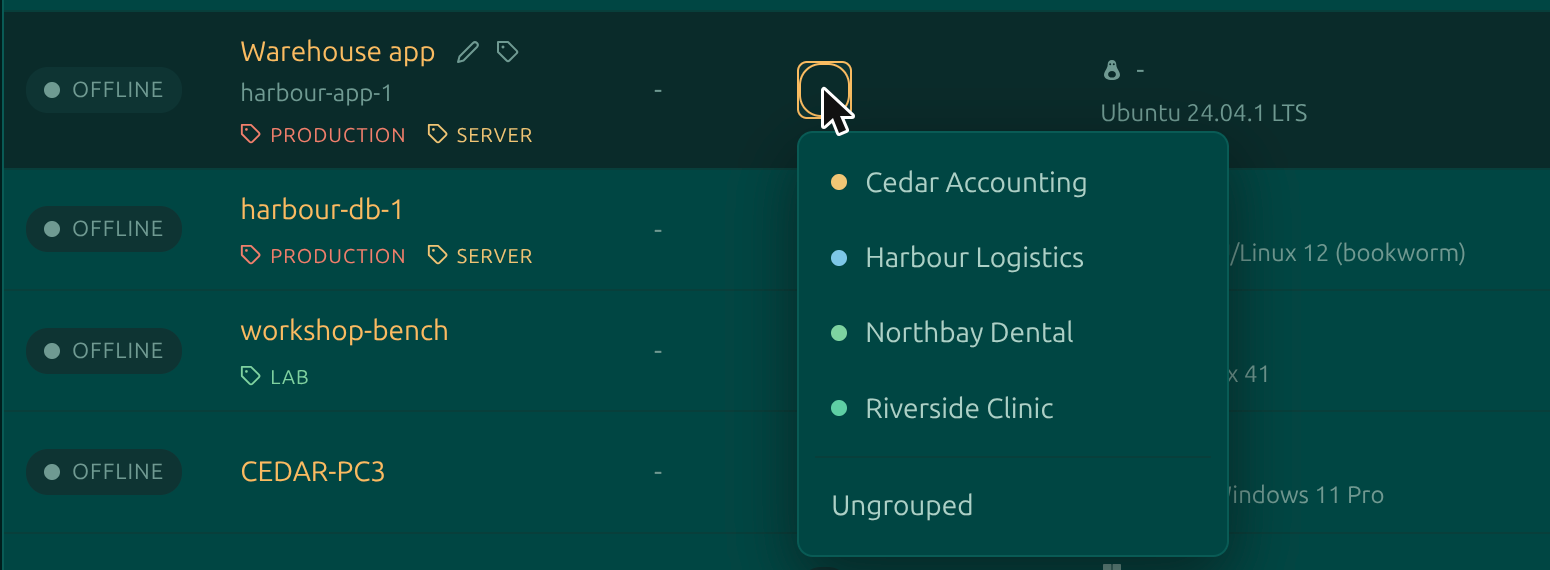
The change saves as soon as you pick. If you are looking at a filtered view, the row correctly leaves it. Ungrouped at the bottom takes the device out of its group without deleting anything.
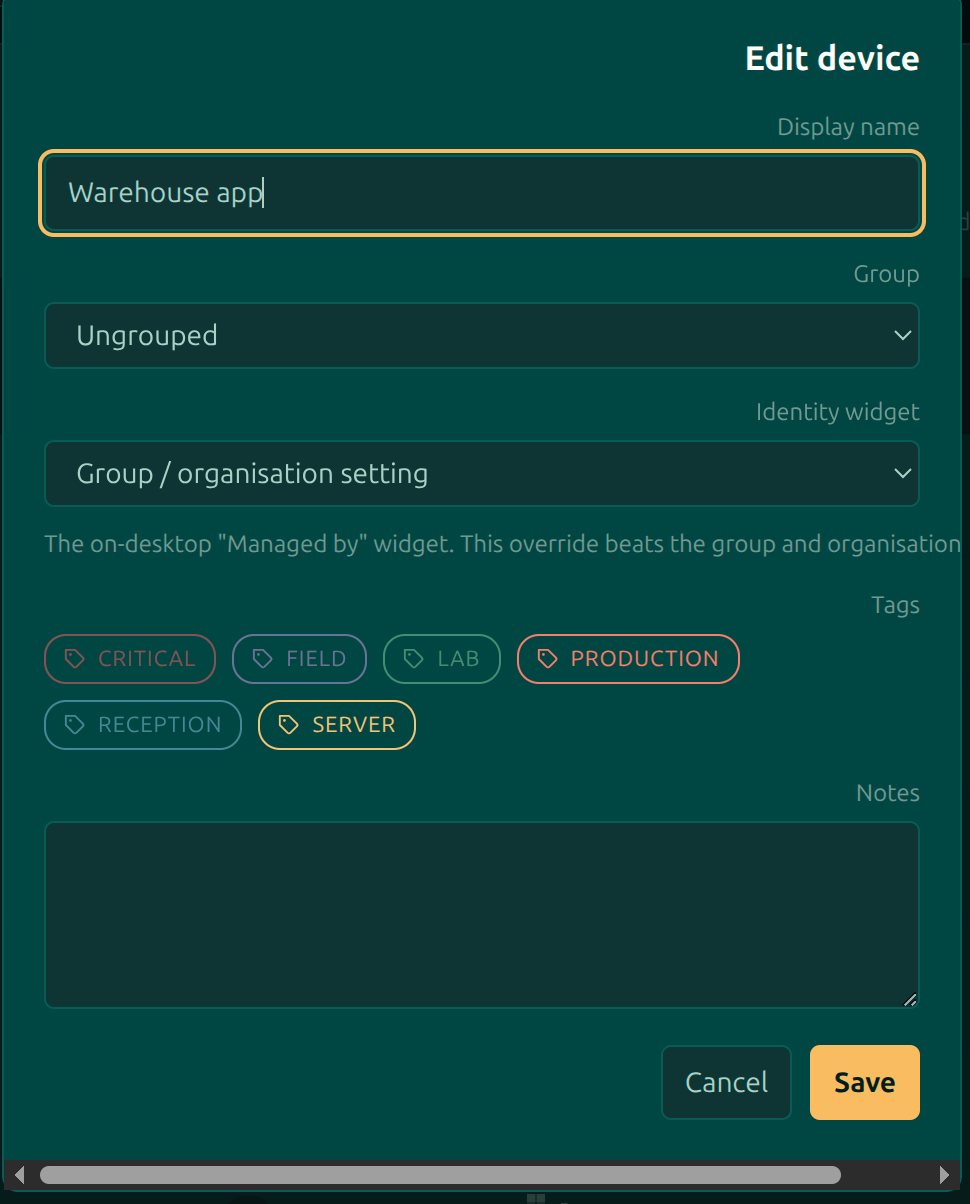
To set the group and the tags together, use Edit at the end of the row, which opens the same dialog as the device page's Actions then Edit.
Tag a host
Hover a device row and a pencil and a tag icon appear beside the name. The tag icon opens the tag menu. It is hidden until hover on purpose, so that five hundred rows are not each wearing a toolbar.
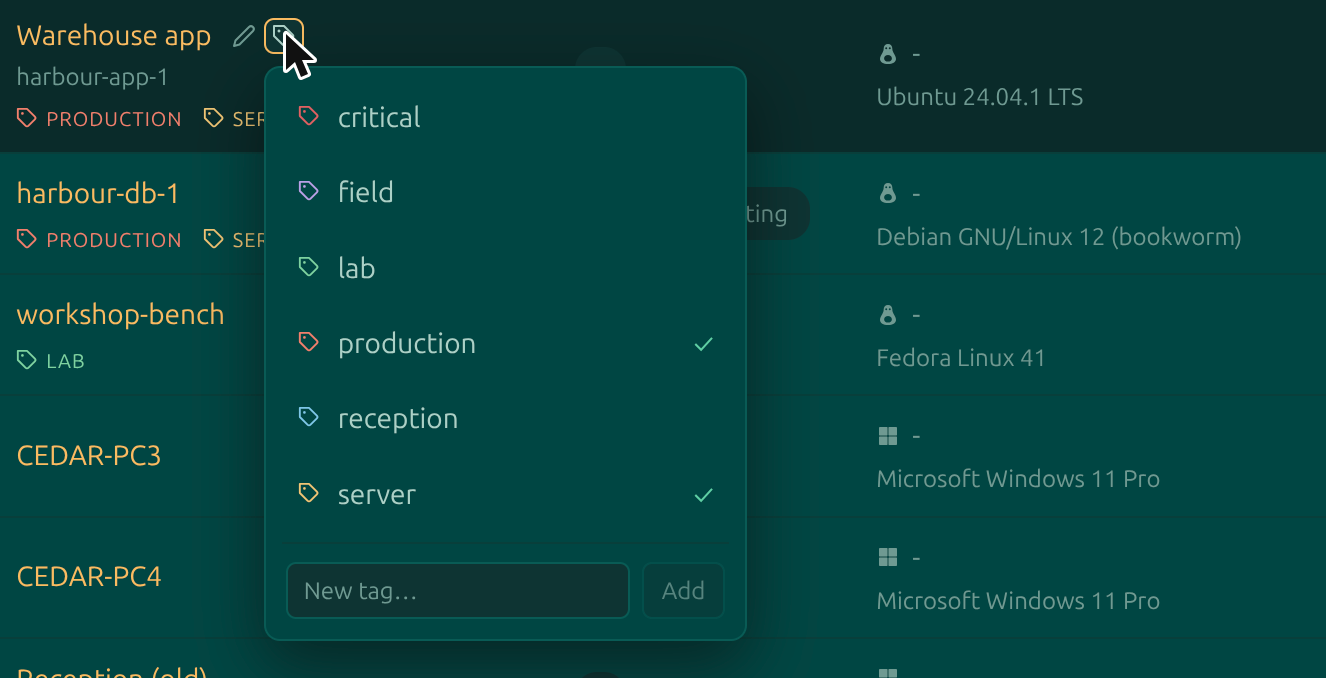
Tick tags on and off. The menu deliberately stays open while you work, because applying three tags should not take three openings. Admins get a New tag box at the bottom which creates the tag and attaches it in one motion; everyone else picks from the tags that exist.
Creating tags is admin-only, and that is enforced by the server rather than just hidden in the interface. It keeps the tag list from turning into five spellings of the same idea.
Tags show as chips under the device name in the list and in the header of the device page. You can also set them from the Edit dialog, which is the better route when you are changing several things about one machine at once.
Working with groups once they exist
Filter badges
A row of group badges sits above the device table. Click one and the table, the page title and the URL all follow, so a filtered view is something you can bookmark or paste to a colleague.

Only a few groups get a badge; the rest sit behind more at the end of the row. Which ones are visible follows what you have pinned and what you have used recently, and that same order drives the sidebar. If a group keeps hiding in the overflow, pin it from that menu.
Column filters and search
The search box matches hostname, alias, signed-in user, OS, both IP addresses, agent version, group name and tag names, so typing a tag name is a quick way to pull up everything wearing it. Filters opens a row of per-column controls for the questions no single search string expresses, such as which Windows servers are offline or who is still on an old agent. The button shows a count while filters are applied, and closing the row clears them, so the table can never be quietly lying to you.
Rolling out agent updates by group
Agents do not update themselves. On the Groups page, Update agents authorises every machine in a group to take the published build for the next 24 hours. It tells you first how many devices that covers, how many are online and will act immediately, and how many are running an older build at all, so a rollout that would change nothing says so before you commit. Revoke calls off the ones that have not acted yet.
The Agents column on the Groups page tracks all of this without opening each group: Up to date means every machine runs the published build, N outdated means the release has not been rolled out there yet, and Updating · N left counts down while a rollout is in flight — the list refreshes on its own until it finishes. Beside it, Last rollout records when Update agents was last pressed for each group.
This is what makes a pilot tag or a pilot group worth having: roll out to a handful of machines, leave it a few days, then roll out to everyone.
Deleting a group
Deleting a group does not delete its machines. They become ungrouped, and the confirmation says how many that is before you agree to it.
Next: what every pill on the device page means.
Moorfox is remote monitoring and management without the enterprise tax.
One agent, one dashboard, remote desktop and a real terminal on every machine you look after.