 Moorfox
Alerts: thresholds, and routing them per tag
Alerting in Moorfox is two decisions kept deliberately apart. What counts as a problem is set per type: CPU, memory, disk, offline and Windows crashes each have their own threshold, and each can be turned off entirely.
Who hears about it is set per tag. One rule per tag, each with its own address, plus a default for everything no tag rule matched. That is how one dashboard covers customers who ring different desks.
The Alerts page
Everything currently breached, and the recent history behind it. The sidebar carries a count of the open ones, so a page you are not looking at still tells you.

Most alerts resolve themselves: the CPU comes back down, the disk gets cleared, the machine reconnects. Those close on their own and the Resolved column says cleared. The Resolve button is for the ones that cannot clear themselves, crash alerts above all: a blue screen is an event, not a state, so nothing will ever declare it over except a person. Resolving by hand records who did it.
Thresholds, one per type
Settings in the sidebar, under Manage. Admin only, and the thresholds apply to every device in the organisation.
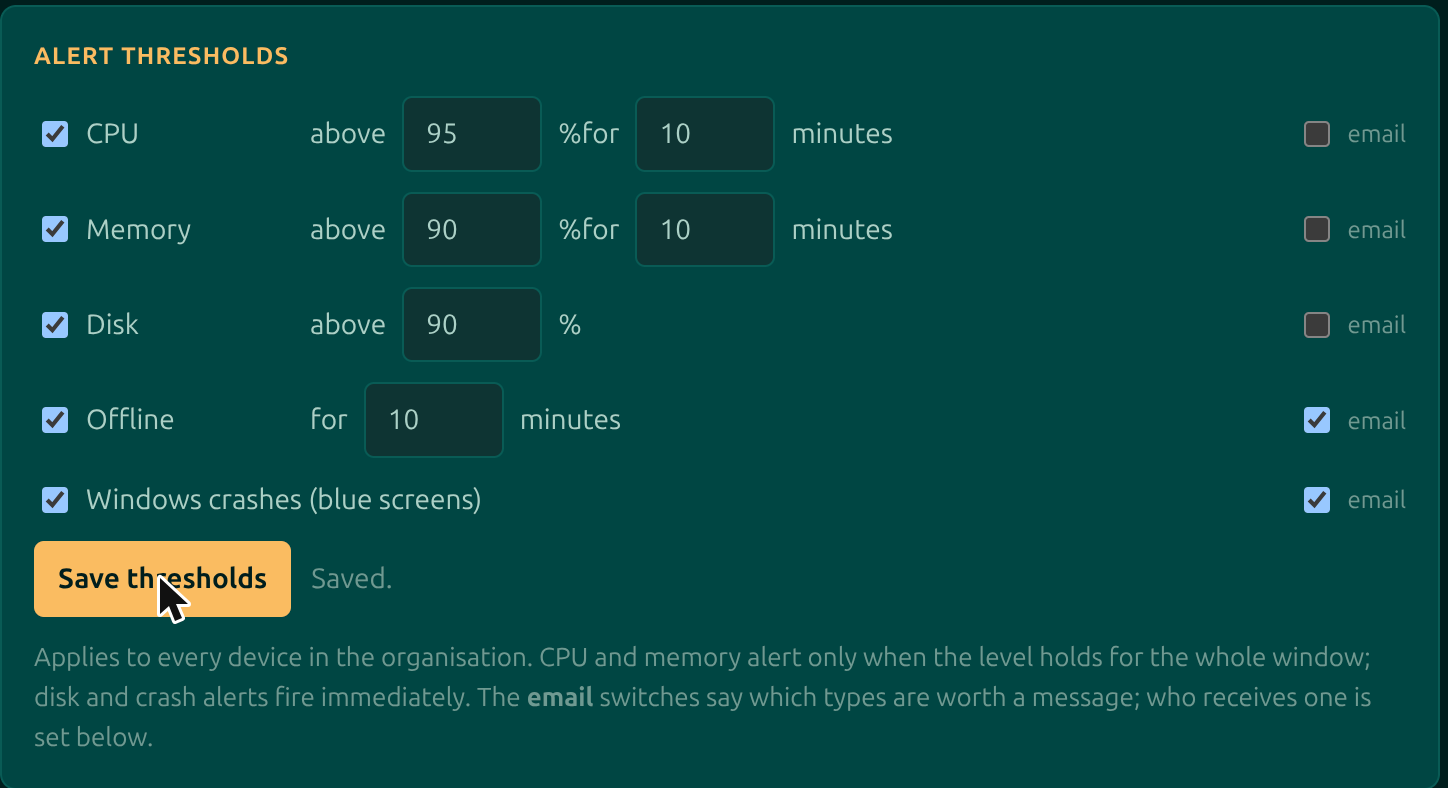
Each row is independent. Clearing the checkbox on the left switches that type off completely, which is the right answer for a fleet where, say, disk is watched by something else already.
| Type | What you set | When it fires |
|---|---|---|
| CPU | A percentage (50 to 100) and a window in minutes | Only if the level holds for the whole window. A brief spike during a backup is not an alert. |
| Memory | A percentage and a window in minutes | Same rule as CPU: sustained, not momentary. |
| Disk | A percentage | Immediately. A full disk does not become less full by waiting, so there is no window to set. |
| Offline | A number of minutes | When the agent has been out of contact for that long. Set it above your reboot and patch windows or you will page yourself every Tuesday. |
| Windows crashes | On or off | Immediately, on a blue screen. Nothing to tune: it either happened or it did not. |
The sustained window on CPU and memory is the setting that decides whether alerting is useful or ignored. Ten minutes above 90% is a machine in trouble; ten seconds above 90% is a machine doing its job.
The email switch is per type too
Every row carries its own email toggle on the right. That is a separate question from whether the alert exists: a type can be watched, appear on the Alerts page and drive the sidebar count, without anybody being emailed at three in the morning.
The usual shape of this is crashes and offline by email, CPU and memory on the dashboard only.
Routing: a different address per tag
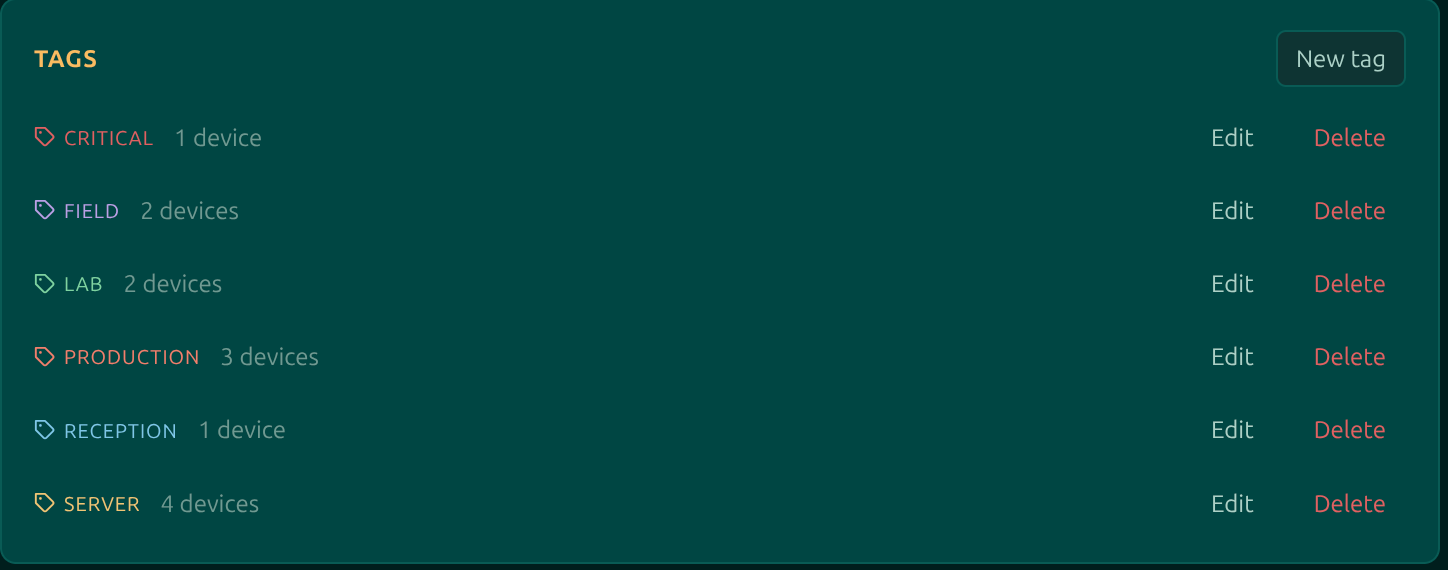
Below the thresholds sit Tags and Alert emails, in that order and for a reason: on this page a tag's job is to be the thing a rule routes on.
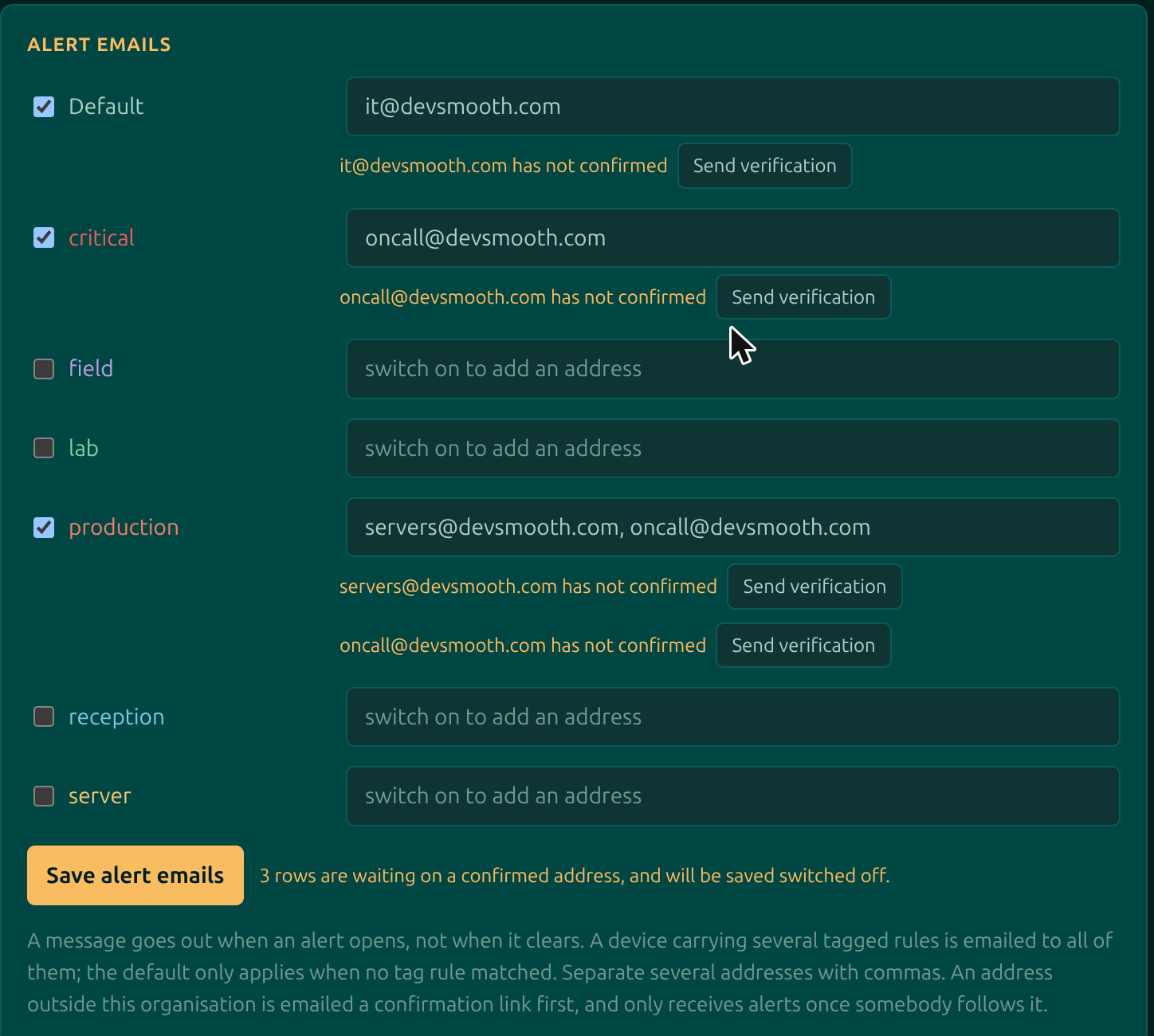
Each row is a switch and an address. Turning the row on is the decision; typing the address carries it out, which is why the field stays disabled until the switch is on. Several addresses go in one field separated by commas.
| Rule | Covers |
|---|---|
| Default | Every device that no tag rule below matched. This is your catch-all, and leaving it off means some machines page nobody. |
| One row per tag | Every device carrying that tag. |
The important part, and the one people get wrong: a device carrying several tagged rules is emailed to all of them. The rules are not a first-match cascade. The default is the only one that behaves that way, and only applies when nothing else did.
So a server tagged both production and Northbay Dental pages your on-call address and the customer's desk, from one alert, with no duplicate rules to maintain.
Addresses have to confirm
An address outside your organisation is sent a confirmation link before it can ever be paged, and a rule pointing at an unconfirmed address is saved switched off rather than refused. The card says so at the point of saving, and offers a Send verification button beside the address.
This is not friction for its own sake. Routing is the one place in Moorfox where filling in a form aims outbound mail at somebody else's inbox, so the inbox gets a say. Your own users are already proven by redeeming their invitation and need no click.
Worth knowing
- A message goes out when an alert opens, not when it clears. No all-clear emails.
- Deleting a tag takes its alert email rule with it. The confirmation says so before you agree.
- If outbound email is not configured on the server, the card says so in place of pretending the rules work.
- A row left blank is simply not a rule, so clearing an address is how you remove one.
Next: how to put tags on machines in the first place, or the activity log.
Moorfox is remote monitoring and management without the enterprise tax.
One agent, one dashboard, remote desktop and a real terminal on every machine you look after.