 Moorfox
Find what is filling a disk
The Disk usage tab on a device answers the question behind every disk-space alert: what is actually filling it. It walks a volume or a folder on the remote machine and gives you a folder tree with size bars, a breakdown by file type, the largest files, and a treemap that shows all three at once. If you have used WinDirStat, you already know how to read it.
Nothing runs on its own. A scan starts when you press the button, runs at background priority so the person using the machine does not notice, and the report is kept in the dashboard until the next scan of the same path, so you can read it after the machine has gone offline.
Run a scan
- Open the device and choose the Disk usage tab. On the Overview tab, each volume's card also has an Analyze button that takes you straight here.
- Pick a volume from the list, which shows how full each one is and when it was last scanned. Or choose A folder… and type a path such as
C:\Usersor/var/log. - Press Scan. The device has to be online.
While it runs you get a progress bar, the file and folder counts so far, the folder being read, and the top-level folders marked done, scanning or pending, so you can see how much of the walk is still ahead. Cancel scan stops it.
The two scan options
| Option | What it does |
|---|---|
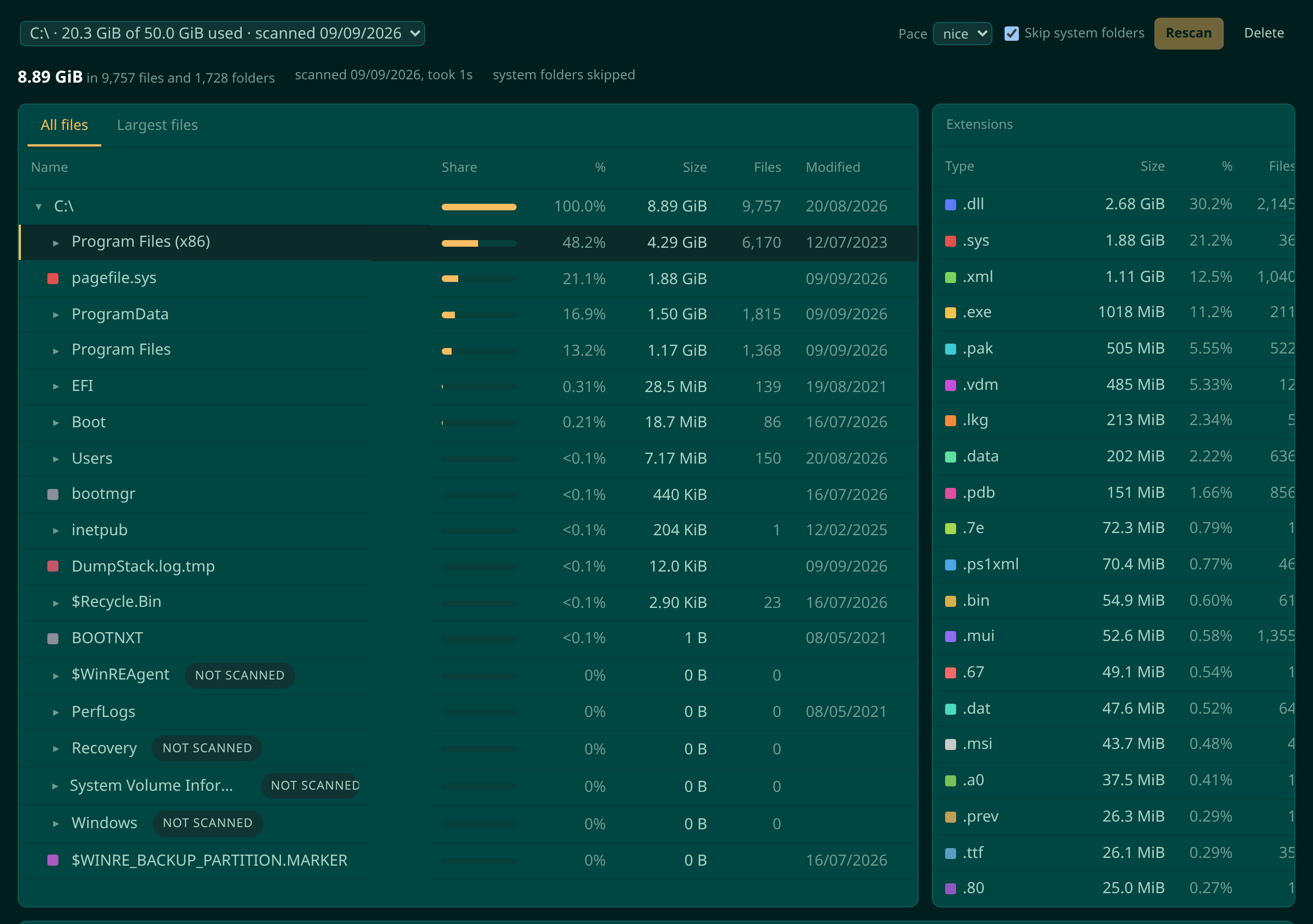
| Pace: nice | The default. The walk pauses more than it works and always gives way to other disk activity, so a large disk takes a while but the machine stays responsive. Use it during working hours. |
| Pace: fast | Still runs at background I/O priority, but never pauses. Use it out of hours, or when somebody is waiting on the answer. |
| Skip system folders | Windows only. Leaves the Windows directory and the volume's recovery and shadow-copy folders unwalked. They hold several hundred thousand files you can neither move nor delete, and they are most of the time a scan takes. They still appear in the report, marked not scanned. |
Read the report
| Part | What it tells you |
|---|---|
| All files | The folder tree, largest first, with a share bar, percentage, size, file count and last-modified date per row. Expand a folder to follow the space down. |
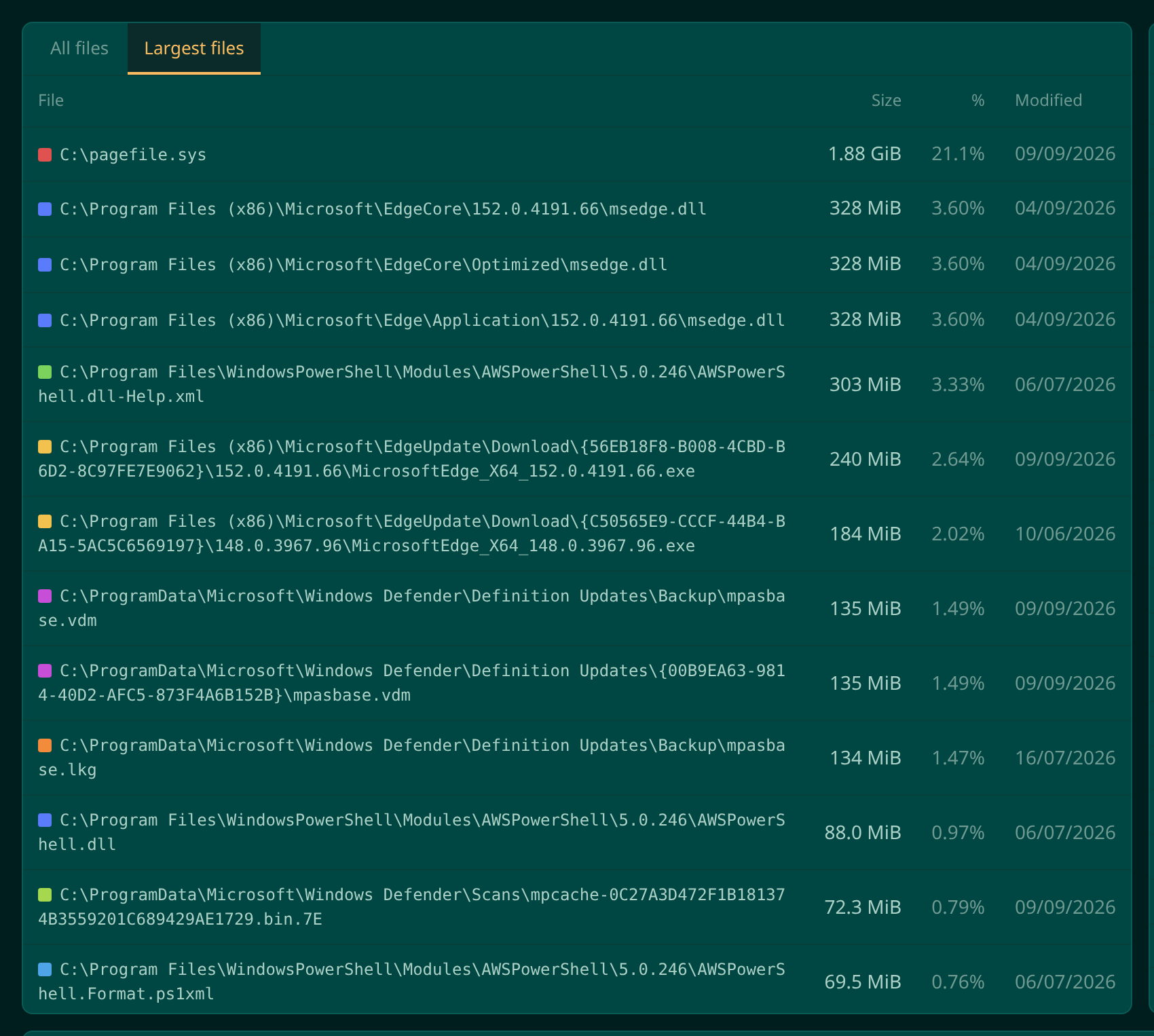
| Largest files | The biggest individual files on the path with their full paths. Often the whole answer: one forgotten disk image or a runaway log. |
| Extensions | The same bytes added up by file type. Click a type to highlight it in the treemap. |
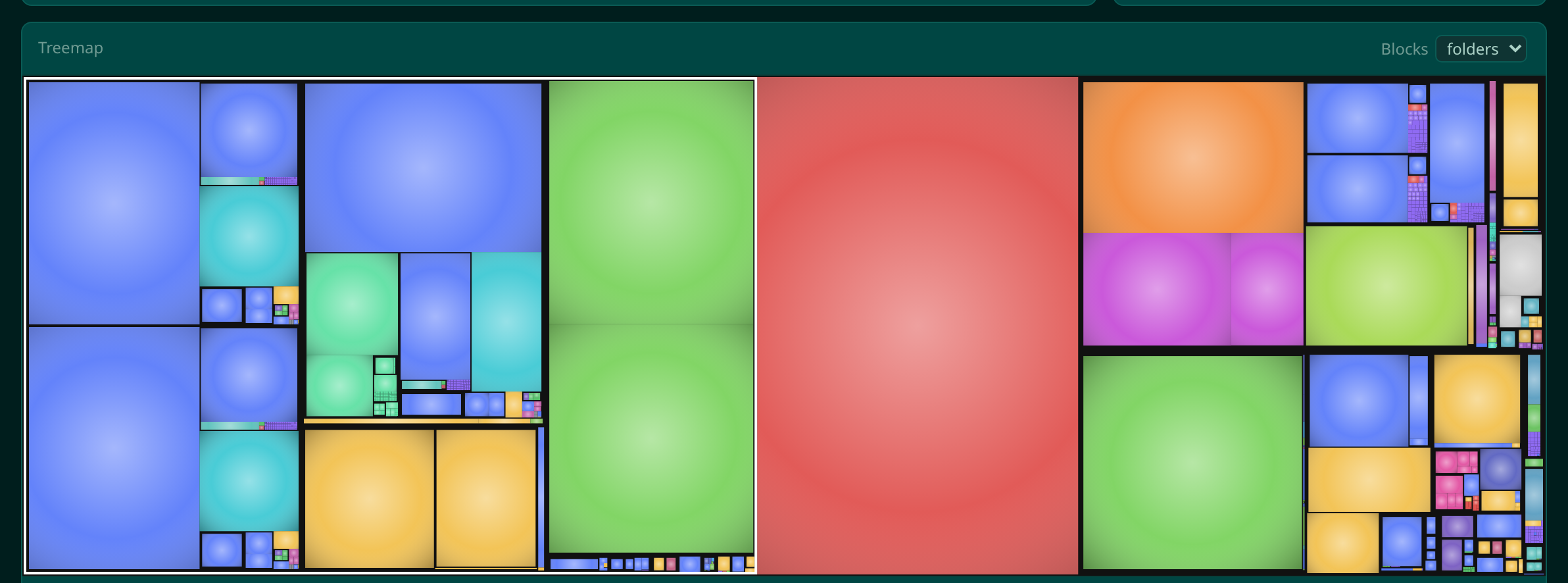
| Treemap | Every block is a folder or a file, area is size, colour is file type and nesting is the folder tree. Click a block to find it in the tree. The Blocks selector switches between folders and files. |
Check that the clean-up worked
Select a folder and press Rescan this folder. Only that folder is walked again and the report is updated in place, which takes seconds rather than the minutes a whole volume does. It is the cheap way to confirm that the space you freed is really free.
Delete forgets the cached report. Nothing on the device changes.
Disk usage reads sizes and names. It never opens a file, and it never deletes anything: the clean-up itself is yours to do, from the file explorer or the terminal on the Manage tab.
Who can use it
Anyone who can view a device can read its reports. Starting, cancelling and deleting scans needs the Manage devices permission, which technicians have by default and guests do not. See users and permissions.
It works on Windows and Linux. On Linux a scan stays on the filesystem
it started on, so scanning / does not wander into network
mounts. A device running an agent from before the feature shows a notice
naming the version it needs.
When a disk alert fires, this is the second click: the alert tells you which machine, and this tab tells you which folder.
Moorfox is remote monitoring and management without the enterprise tax.
One agent, one dashboard, remote desktop and a real terminal on every machine you look after.