 Moorfox
The desktop identity widget and your branding
Managed Windows machines carry a small identity widget in the top right corner of the desktop: the machine's name, its IP addresses, Managed by your company, and your support email and phone. It answers the two questions the person at the keyboard actually has, which machine is this and who do I call.
Everything on it is set under Settings, Organisation, with a preview that updates as you type. The widget can be switched off for the whole organisation, and that decision can be overridden per group and per device, which is how servers go without one while reception PCs keep theirs.
Set your name, contact and colours
Open Settings, then Organisation. You need the Organisation settings permission, which admins always have; everyone else sees a read-only summary.
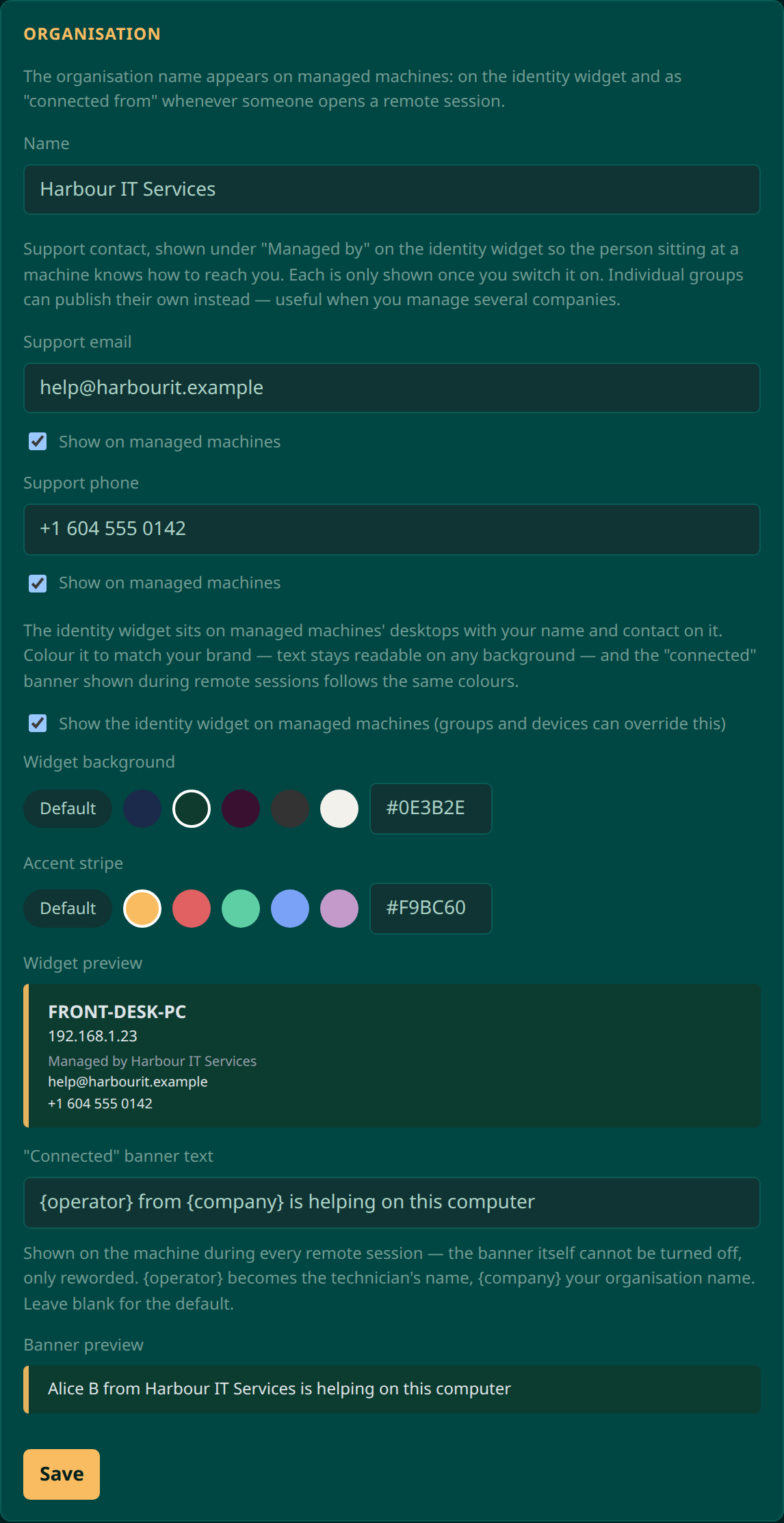
| Setting | What it does |
|---|---|
| Name | Your organisation name. It appears after Managed by on the widget, and as connected from whenever someone opens a remote session. |
| Support email and Support phone | How the person at the machine reaches you. Each has its own Show on managed machines switch, so you can enter a new number now and publish it later. |
| Show the identity widget | The organisation-wide switch. Groups and devices can override it in either direction. |
| Widget background | A few curated swatches, a hex field for your exact brand colour, or Default for the built-in dark panel. Text switches between light and dark on its own, so it stays readable on whatever you pick. |
| Accent stripe | The coloured bar down the left edge of the widget and the session banner. |
| “Connected” banner text | The wording of the banner shown on the machine during every remote session. {{operator}} becomes the technician's name and {{company}} your organisation name. Leave it blank for the default. |
Press Save and machines that are online pick the change up immediately. Nobody has to restart anything.
The session banner can be reworded and recoloured, but it cannot be switched off. Somebody whose screen is being watched is always told so, by name. Switching the widget off does not affect it, and your colours still apply to it.
Override the widget for a group
An MSP rarely wants one answer for every machine. Open Settings, then Groups, and edit a group.
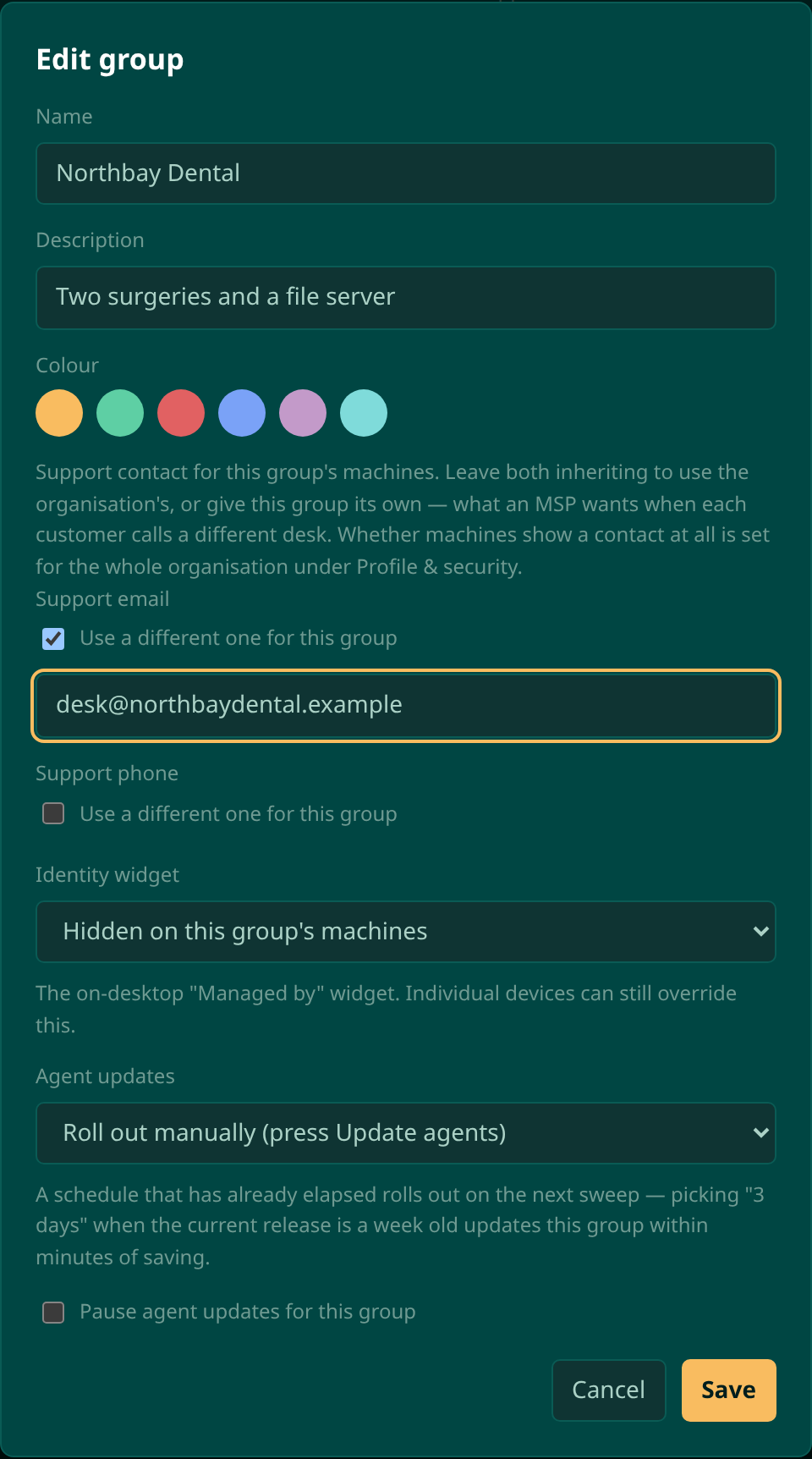
| Group setting | Choices |
|---|---|
| Support email and Support phone | Tick Use a different one for this group to publish this customer's own desk instead of yours. Ticked and left blank is a real answer too: these machines name no address, even though the organisation publishes one. |
| Identity widget | Organisation setting (inherit), Hidden on this group's machines, or Shown on this group's machines. |
The common pattern is a group per customer for the contact details, and a group of servers with the widget hidden, because nobody sits at a server's desktop and a widget in every RDP session is only noise. See groups and tags for the rest of what a group carries.
Override it for one device
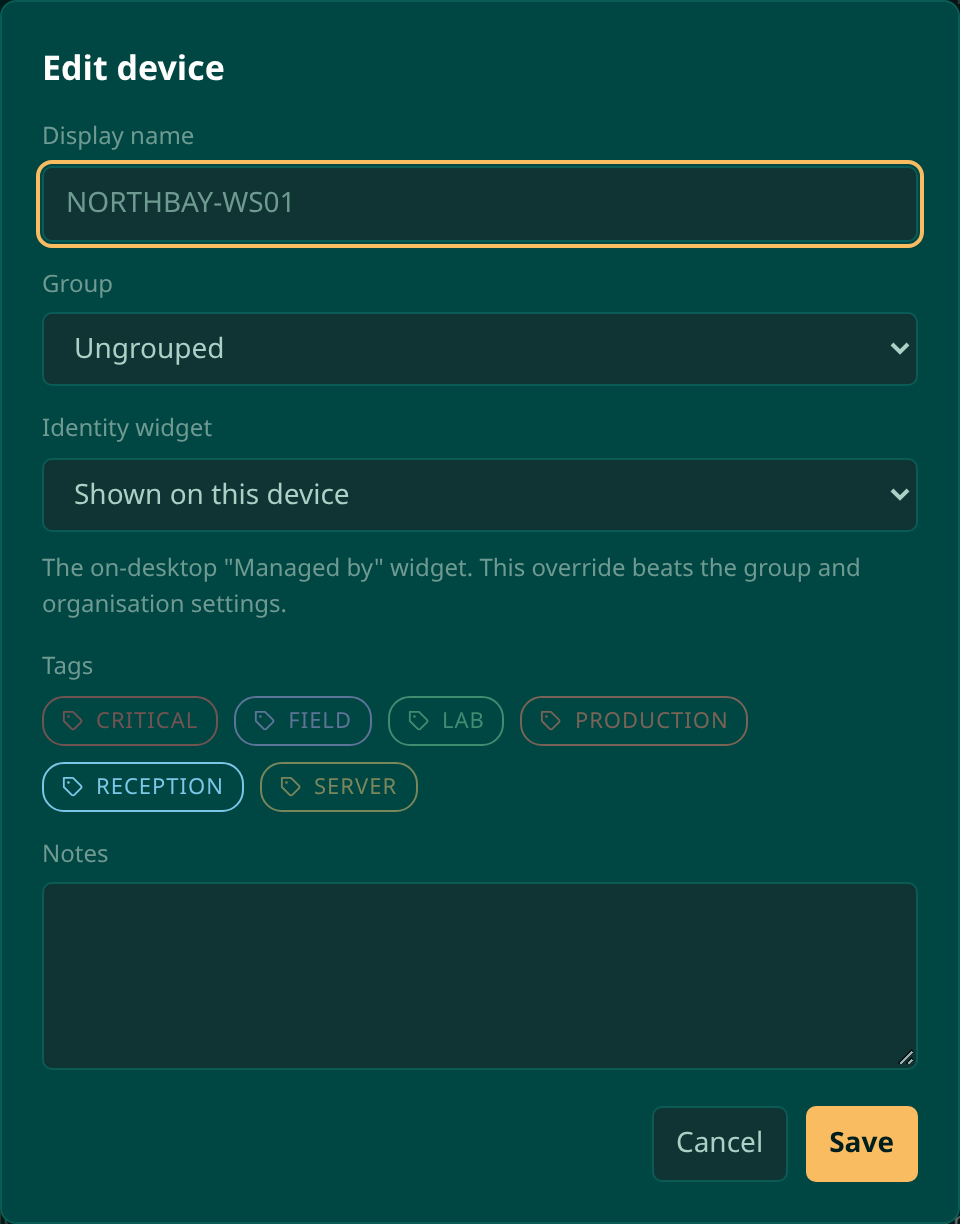
On the device page, open Actions, then Edit. The Identity widget setting there has the same three choices, and it beats both the group and the organisation.
Which setting wins
The most specific one that is not set to inherit:
- The device, if it says shown or hidden.
- Otherwise its group, if the group says shown or hidden.
- Otherwise the organisation switch.
Support contact works the same way one level up: a group's own email or phone replaces the organisation's on that group's machines.
What the widget shows
From the top: the device's display name if you have given it one, with the hostname underneath; the machine's IP addresses; Managed by and your organisation name; then the support email and phone, in full strength rather than dimmed, because those are the two lines somebody is meant to read off the screen and type into a phone.
It is drawn on Windows desktops. Linux machines are managed in exactly the same way and simply have no widget.
Moorfox is remote monitoring and management without the enterprise tax.
One agent, one dashboard, remote desktop and a real terminal on every machine you look after.