 Moorfox
Users, permissions and guest accounts
Settings, Users is where you invite people and decide what each of them may do. There are three roles, Admin, Technician and Guest, and a role is only a starting point: open a user and you can tick or untick individual permissions, so a field technician can enrol machines without also being handed billing.
Anyone who is not an admin can also be limited to only assigned devices. That is what makes a guest account useful: a customer's office manager who can remote into their own three PCs and cannot see that the rest of your estate exists.
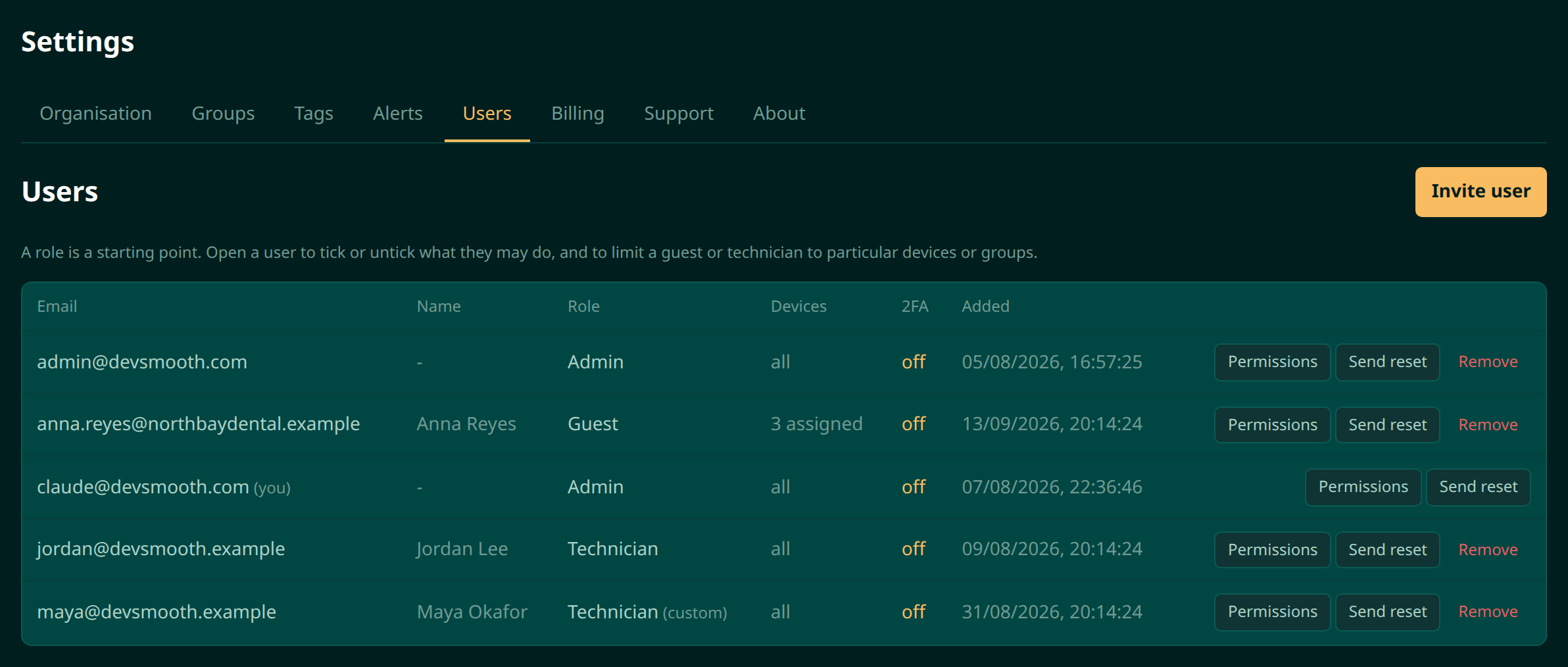
The three roles
| Role | Starts with | Meant for |
|---|---|---|
| Admin | Everything, always. An admin's boxes cannot be unticked; to take something away, change the role. | The people who own the account: users, billing and organisation settings included. |
| Technician | Viewing and managing devices, remote desktop, the terminal and file tools, running saved commands, groups, alerts, a read-only view of patching, the activity log and QuickSupport. | The people who do the work on machines every day. |
| Guest | Viewing devices and remote desktop, limited to assigned devices. | Somebody outside your team who needs to reach their own machines and nothing else. |
A user whose ticks no longer match their role's preset shows as Technician (custom) in the list, so you can see at a glance who has been given something extra or had something taken away.
Invite a user
- Open Settings, then Users, and press Invite user.
- Enter their email address and pick a role.
- Press Send invitation. They get a link at that address and choose their own password. Nothing is created until they use it, and the link stops working after a week.
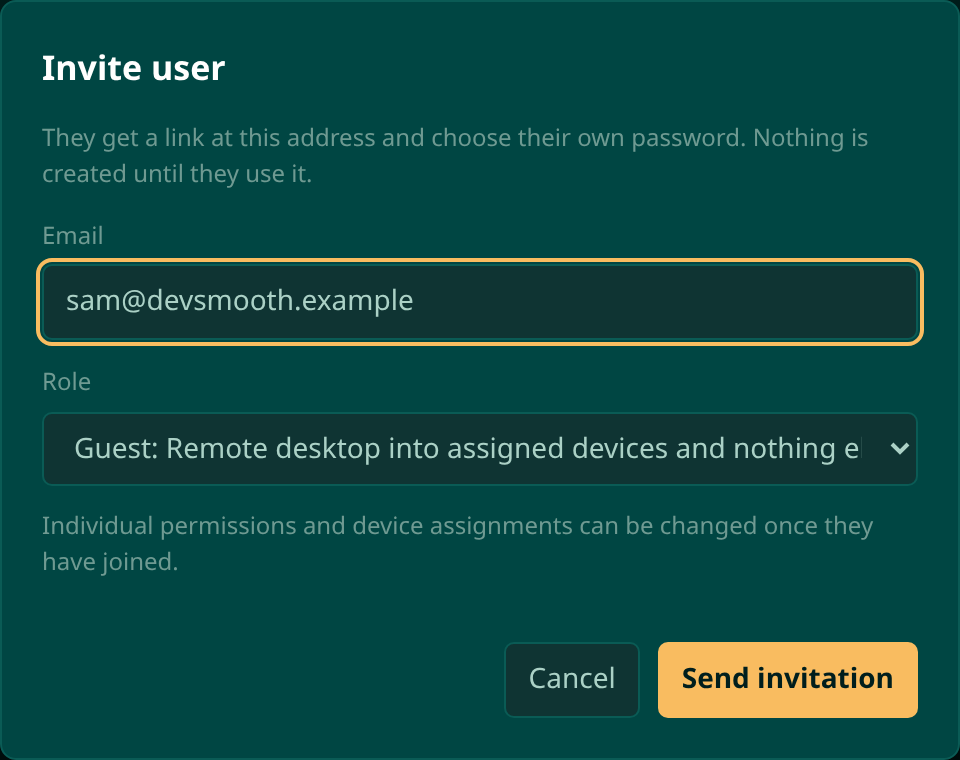
Invitations that have not been used yet are listed under Invited, not yet joined, each with a Withdraw button that stops the link working. If your deployment cannot send email, the link is shown once for you to pass on yourself; only its hash is stored, so if it is lost, invite them again.
Permissions and device assignments are set once the person has joined, not on the invitation. A guest with nothing assigned sees nothing, so open them in the list as soon as they appear and pick their machines.
Change what one person can do
Press Permissions on a user's row. Choosing a role resets the boxes to that role's preset, and you can change them freely afterwards.
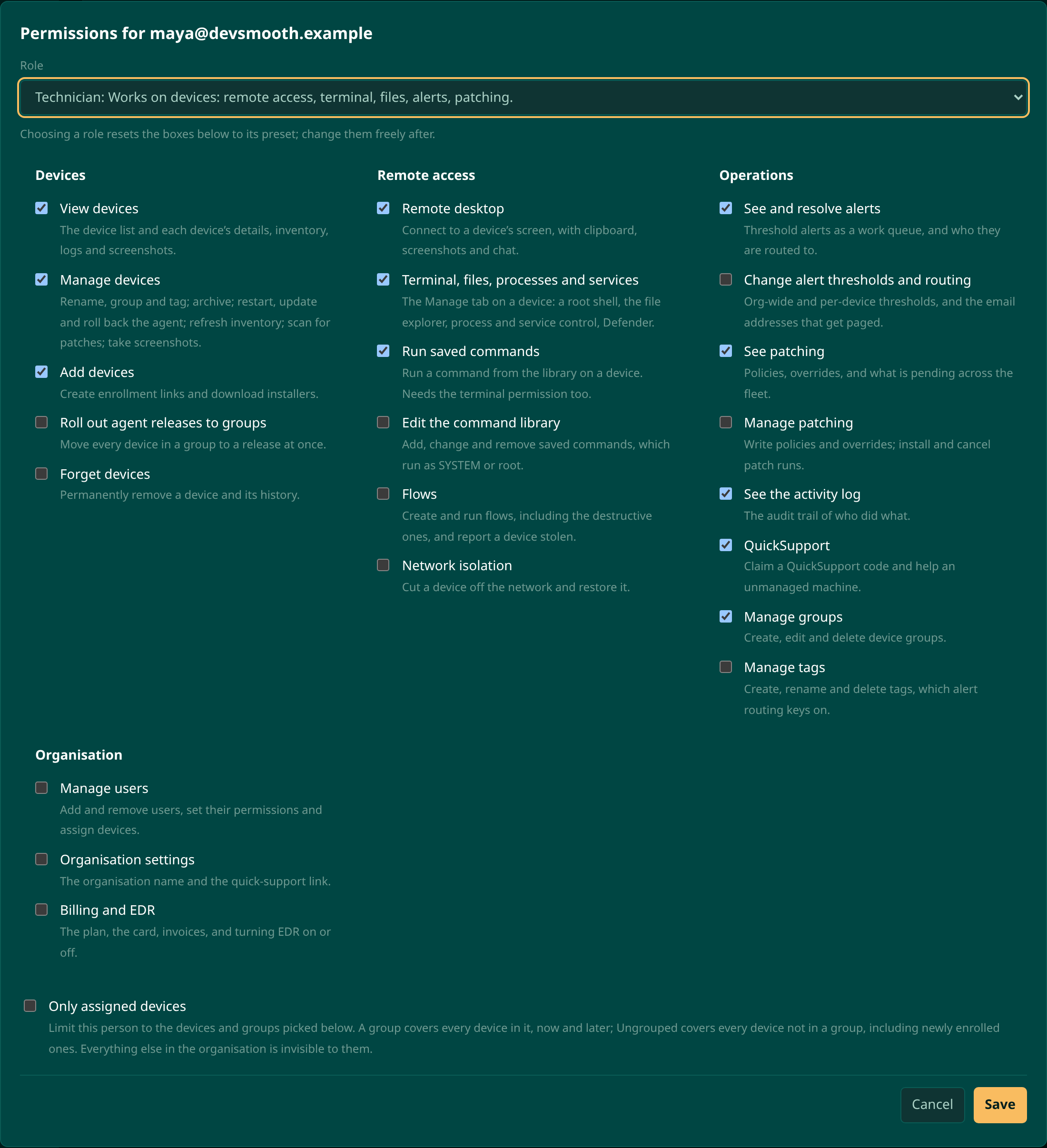
The permissions are grouped the way the dashboard is:
| Group | What is in it |
|---|---|
| Devices | View devices; manage them (rename, group, tag, archive, restart and update the agent, scan for patches, run disk usage scans); add devices; roll out agent releases to a whole group; forget devices. |
| Remote access | Remote desktop; the terminal, file explorer, processes and services; running saved commands; editing the command library; flows; network isolation. |
| Operations | Seeing and resolving alerts; changing alert thresholds and routing; seeing patching; managing patching; the activity log; QuickSupport; managing groups; managing tags. |
| Organisation | Managing users; organisation settings; billing and EDR. |
Two of them work as a pair. Run saved commands needs the terminal permission as well, because a saved command is a script running as SYSTEM or root, and a person who may not open a shell should not get one by another door.
The dashboard only offers what a person holds. Somebody without Add devices has no Add device button; somebody without Flows has no Flows page. This is a convenience, not the lock: the server checks the permission on every request, so knowing the address of a page gets nobody anywhere.
Limit someone to particular devices
At the bottom of the editor, tick Only assigned devices and pick what the person may see. It is on by default for guests and available for technicians, which is how you give a customer's own IT person a real technician account for their company and nobody else's.
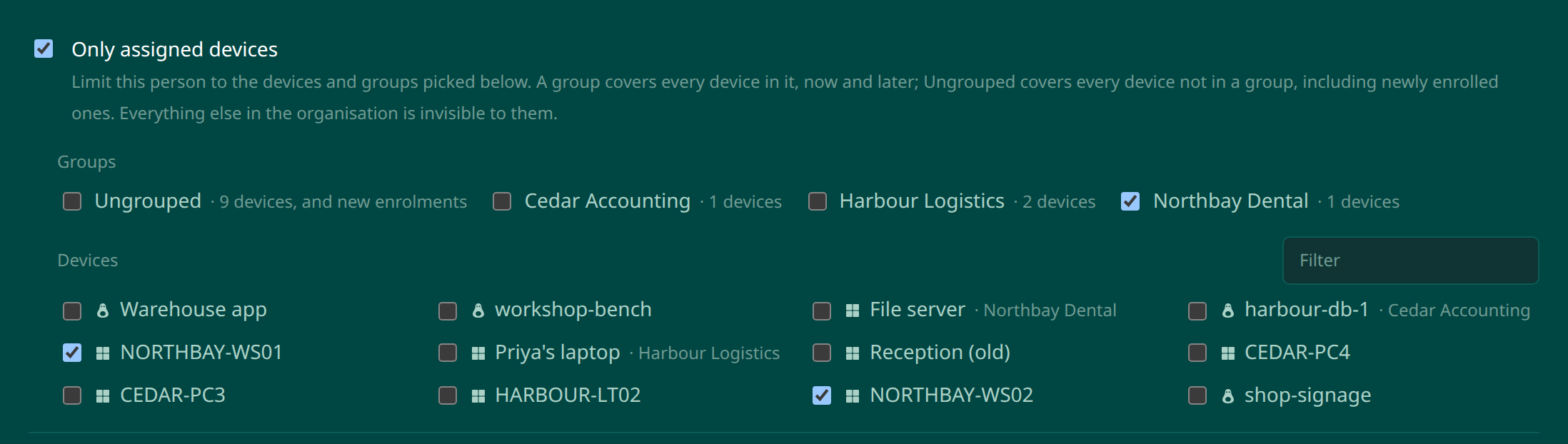
| You can assign | What it covers |
|---|---|
| A group | Every device in it, now and later. Move a new machine into the group and the person can see it without you touching their account. |
| Ungrouped | Every device that is not in a group, including newly enrolled ones. |
| Individual devices | Exactly those machines. The filter box is there for when the list is long. |
The editor will not let you save a limited user with nothing picked, because an account that sees nothing only generates a support call.
What a guest sees
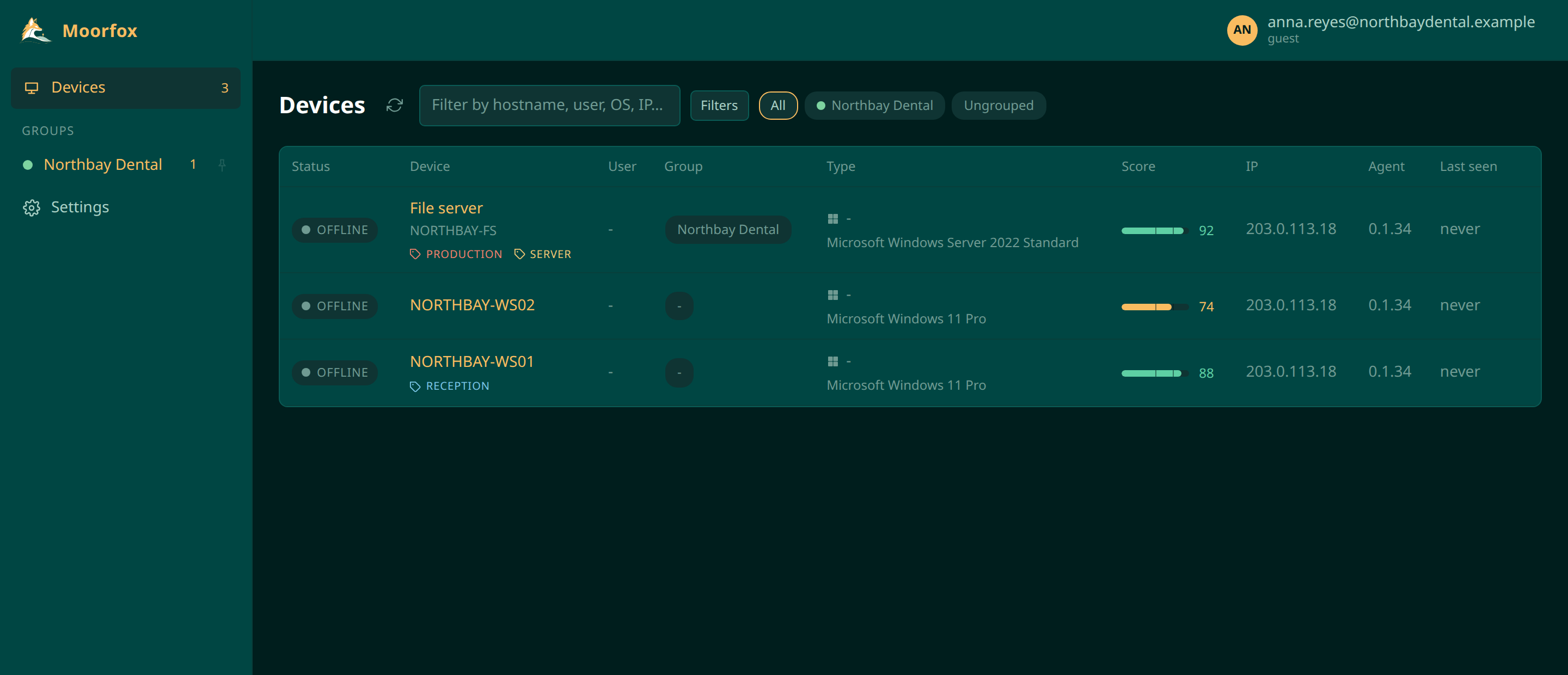
A guest gets a much smaller dashboard: their devices and their own settings. No Manage section in the sidebar, no Add device button, no alerts, no activity log. On a device they can read its details and press Connect for remote desktop, with clipboard and chat. The terminal, file explorer, processes and services are not there.
Rules that protect you from yourself
- Only an admin can make an admin. Somebody holding Manage users can invite technicians and guests, and cannot edit or remove an admin.
- Nobody can hand out a permission they do not hold. The boxes you cannot grant are greyed out.
- A limited manager can only create limited users. If you can see one customer's machines, so can the people you invite, and no more.
- The last admin cannot be demoted or removed, so the organisation always has a way back in.
Send reset on a user's row emails them a password reset code. They choose the new password themselves and nothing changes until they do. Remove ends their session immediately. All of it lands in the activity log under Administration.
Moorfox is remote monitoring and management without the enterprise tax.
One agent, one dashboard, remote desktop and a real terminal on every machine you look after.