 Moorfox
Isolate a suspected-compromised device
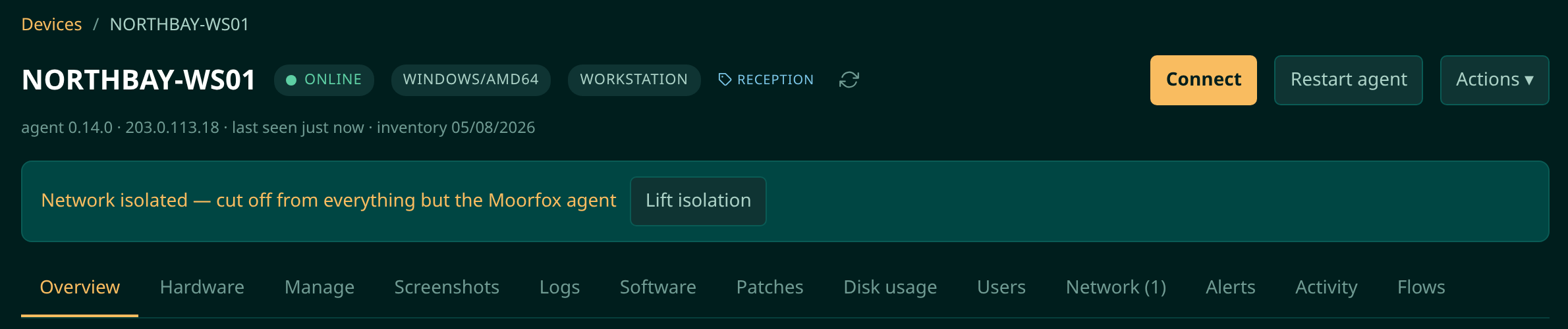
When a machine looks infected, Isolate network… in the device's Actions menu cuts it off the local network and the internet: no file shares, no other machines, no browsing, no calling home to whoever is controlling it. The Moorfox agent is the one thing left connected, so remote desktop, the terminal, the file explorer and saved commands all keep working while you investigate.
You confirm by typing the device's name. If the machine is offline, the isolation is saved and applied the moment it next checks in, and it stays in place across restarts until you choose Lift network isolation. Every isolate and lift goes into the activity log with the name of the person who did it.
Isolate a device
- Open the device and press Actions at the top of the page.
- Choose Isolate network…. It is marked in red because it is disruptive: the person at that machine loses their shares, their line-of-business apps and the internet.
- Type the device's name to confirm. The display name, the hostname or the device ID all work. Anything else and nothing happens.
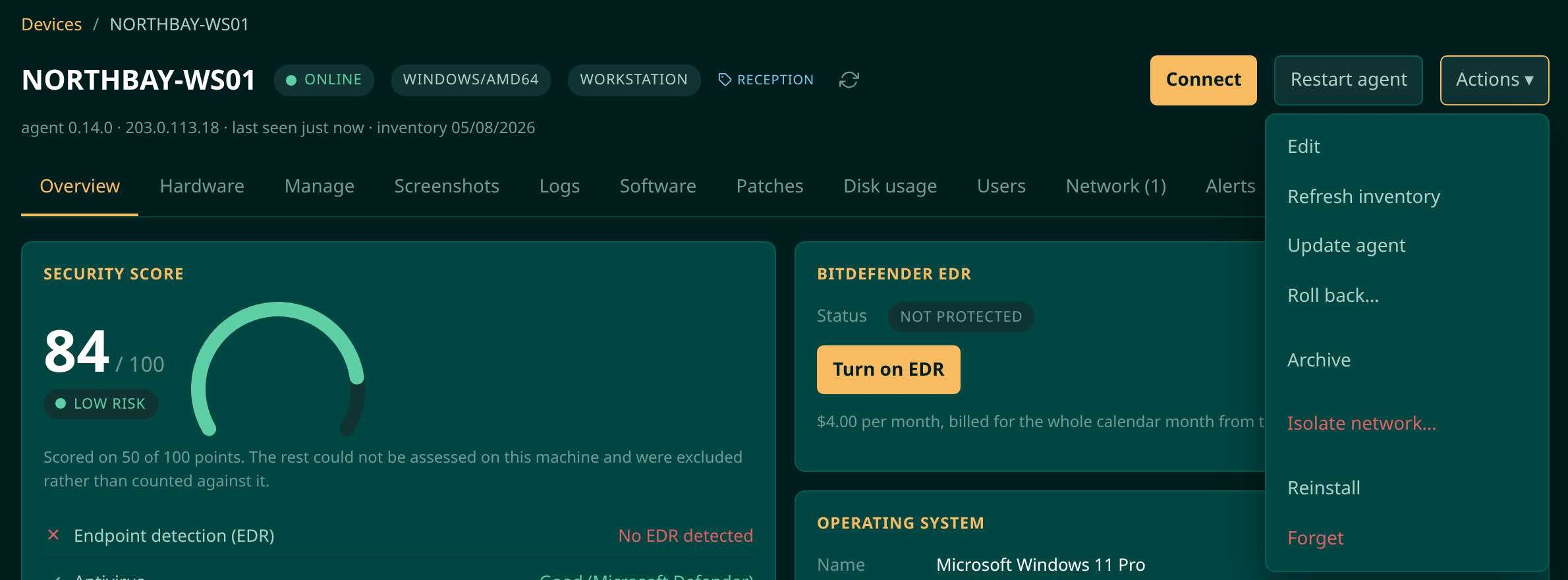
An online device is isolated within seconds. The device page shows a banner, first Isolating from the network… and then, once the agent reports that its rules are in place, Network isolated. The banner only changes on the agent's word, so it never claims a machine is contained on hope.
In the device list an isolated machine carries a red isolated pill, and one waiting for its agent to confirm shows isolating….
Isolating an offline device is not an error. The request is saved, the banner says it is waiting, and the agent applies it the moment it next checks in. A laptop you suspect is infected can be isolated before it is switched back on.
What is blocked and what still works
| While isolated | What happens |
|---|---|
| Local network | Blocked by default. The machine cannot open connections to file shares, printers or other computers, and they cannot open connections to it. |
| Internet | Blocked by default. Browsers, sync clients and whatever software is phoning home cannot connect out. |
| The Moorfox agent | Stays connected. Remote desktop, the terminal, the file explorer, processes and services, and saved commands all work. Remote desktop goes through the Moorfox relay instead of a direct connection, so it can feel a little slower. |
| DNS and DHCP | Left open on purpose. Without DHCP the machine would lose its address during a long isolation, and without DNS the agent could not find its way back to Moorfox. |
| Restarts | Isolation survives them. It is back in place as the machine starts. |
Isolation stops new connections. One that was already open when it took effect can carry on, so once the machine is contained, use the Manage tab to end the processes and services you do not trust, or restart the machine.
Lift the isolation
When the machine is clean, or you have rebuilt it, choose Lift network isolation in the Actions menu, or press Lift isolation in the banner. No typed confirmation is needed to give a machine its network back. The agent removes its rules and puts back the firewall policy the machine had before.
The safety net
The worst outcome of cutting a machine off the network is cutting it off from Moorfox as well, so the agent watches its own connection the whole time it is isolated:
| If the agent… | It does this |
|---|---|
| cannot reach Moorfox for a minute | Puts its own allow rules back, in case something on the machine removed them. |
| cannot reach Moorfox within five minutes of isolating | Takes the isolation off again, on the reasoning that the rules themselves are the problem. |
| has had no contact with Moorfox for six hours | Lifts the isolation, so a mistake never leaves a machine unreachable for good. |
When the agent lifts the isolation itself it says so the next time it connects, and the device page shows Network isolation self-lifted with the reason. If the isolation could not be applied at all, the banner reads Network isolation failed with the detail from the machine. Either way, treat the machine as not contained.
Windows and Linux
Windows: isolation uses Windows Firewall. It switches
the firewall on for every profile, sets the default for inbound and
outbound traffic to block, and adds a few named rules of its own for the
agent, DNS and DHCP, all starting Moorfox Isolation. When the
isolation is lifted, the outbound default goes back to what it was, and
the firewall is left switched on.
Because these are ordinary Windows Firewall rules, two things follow. Allow rules that were already on the machine still apply, so if File and Printer Sharing or Remote Desktop is allowed in, that traffic still gets through. And a local administrator on the machine can change the firewall back. If the incident involves a compromised administrator account, disable that account as well.
Linux: isolation loads its own nftables table,
moorfox_isolation, which drops everything in and out except
DNS, DHCP, the agent's connection to Moorfox and the remote-desktop relay.
It also stops the machine forwarding traffic. Existing nftables, ufw or
firewalld rules are not touched, and lifting deletes the table.
Isolation needs agent 0.12.0 or later. On an older agent the menu item is greyed out and names the version to update to. It is not offered on QuickSupport sessions, since those machines are not yours to manage.
Who can isolate a device
Admins can. Technicians cannot by default, because isolation takes a machine away from the person using it. An admin can tick Network isolation for a technician under Remote access in their permissions. The same permission lifts it.
Every isolate and every lift is recorded in the activity log, with who asked for it and when, along with what the agent reported back.
A containment checklist
Isolation is the first move, not the whole response. Our guide how to contain an infected computer walks through the rest: accounts, credentials, evidence and when to rebuild. For a machine you are not yet sure about, start with is this Windows PC hacked?.
Moorfox is remote monitoring and management without the enterprise tax.
One agent, one dashboard, remote desktop and a real terminal on every machine you look after.